You can help support this website by buying me a coffee!

A guide for IT Admins to help you get started using Log Analytics for Azure Active Directory. Create a Log Analytics workspace using Azure CLI, export Azure AD sign-in and audit logs to Log Analytics and run Kusto queries on log data.
What is Azure Log Analytics?
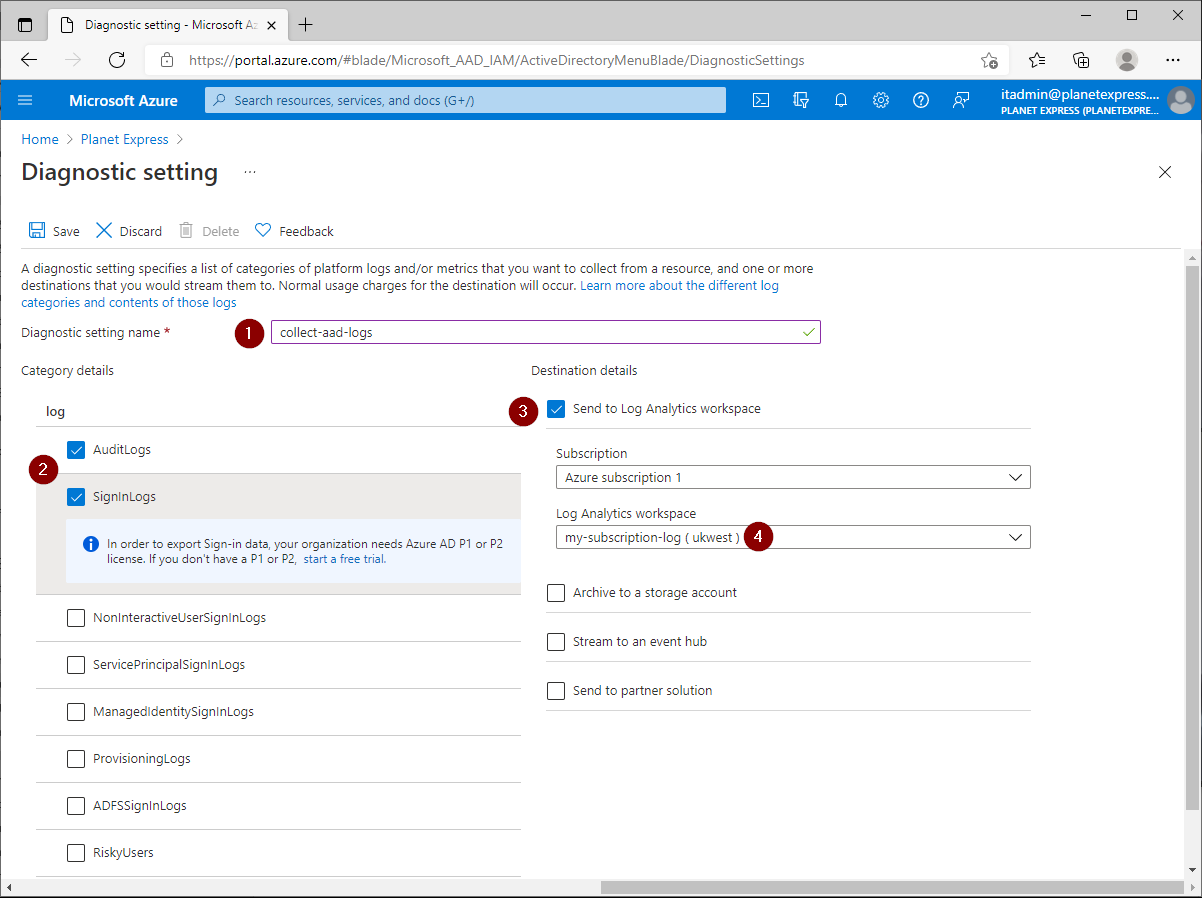
Before you can use Log Analytics, you'll need to create a workspace and export your Azure Active Directory (AAD) sign-in logs to Log Analytics.
Create a Log Analytics workspace using Azure CLI
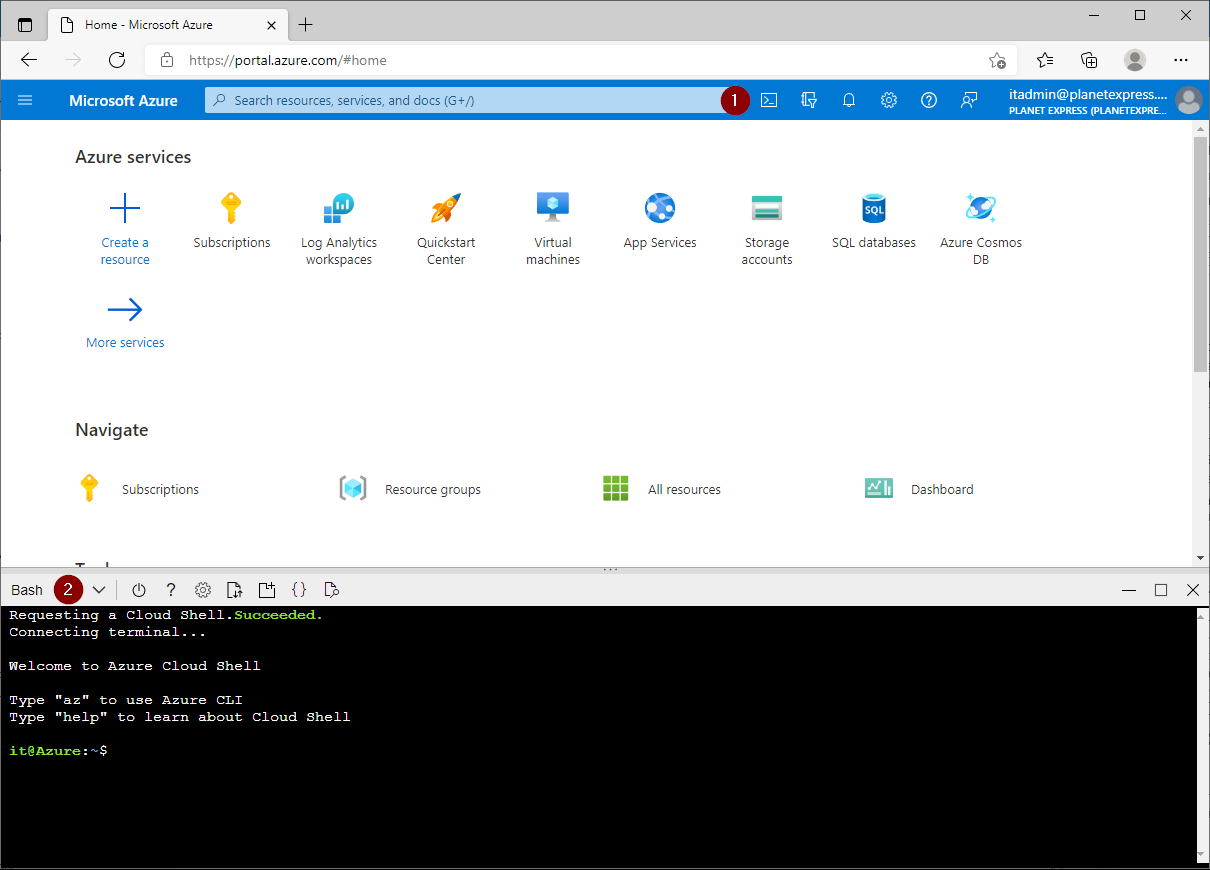
Open Cloud Shell
Change to the Bash shell / Azure CLI
Create a resource group
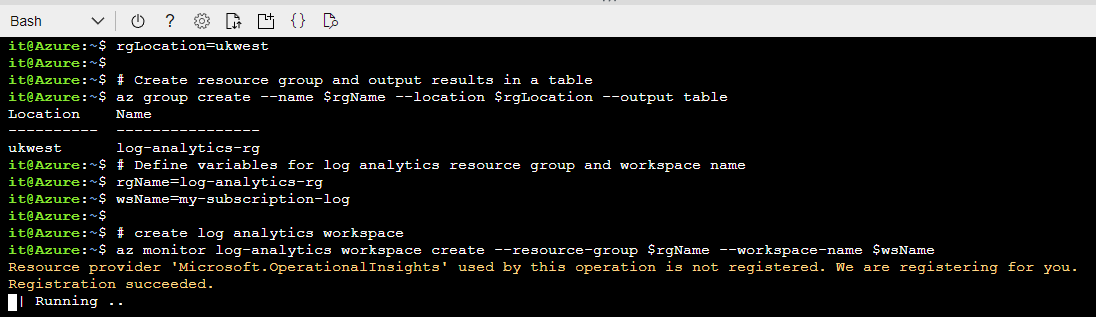
# Define resource group variables for name and location
rgName=log-analytics-rg
rgLocation=ukwest

# Create resource group and output results in a table
az group create --name $rgName --location $rgLocation --output table
Create a Log Analytics Workspace
# Define variables for log analytics resource group and workspace name
rgName=log-analytics-rg
wsName=my-subscription-log

# create log analytics workspace
az monitor log-analytics workspace create --resource-group $rgName --workspace-name $wsName
How many Log Analytics workspaces should I have?
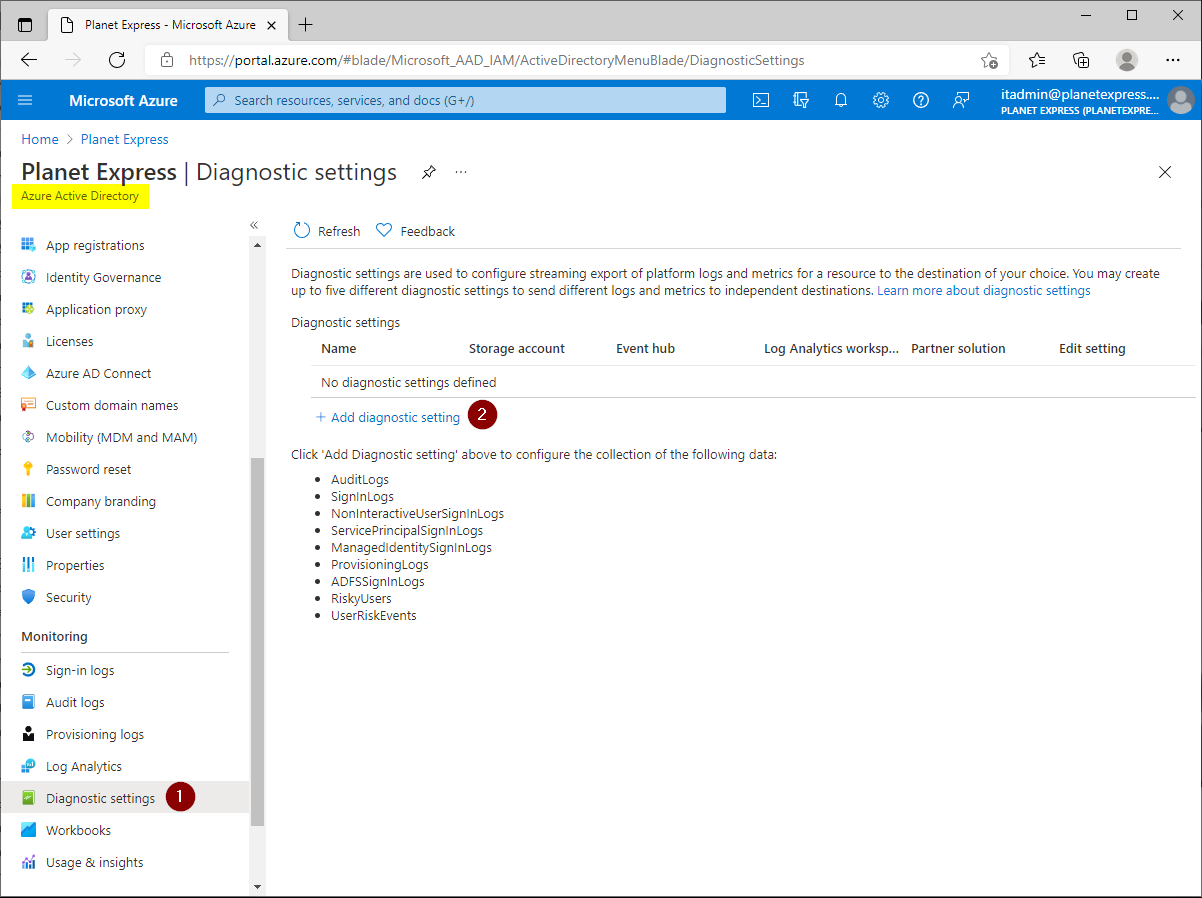
Azure Active Directory - Diagnostic Settings - Add diagnostic setting
Log Analytics Workspace - Logs - Close welcome screen

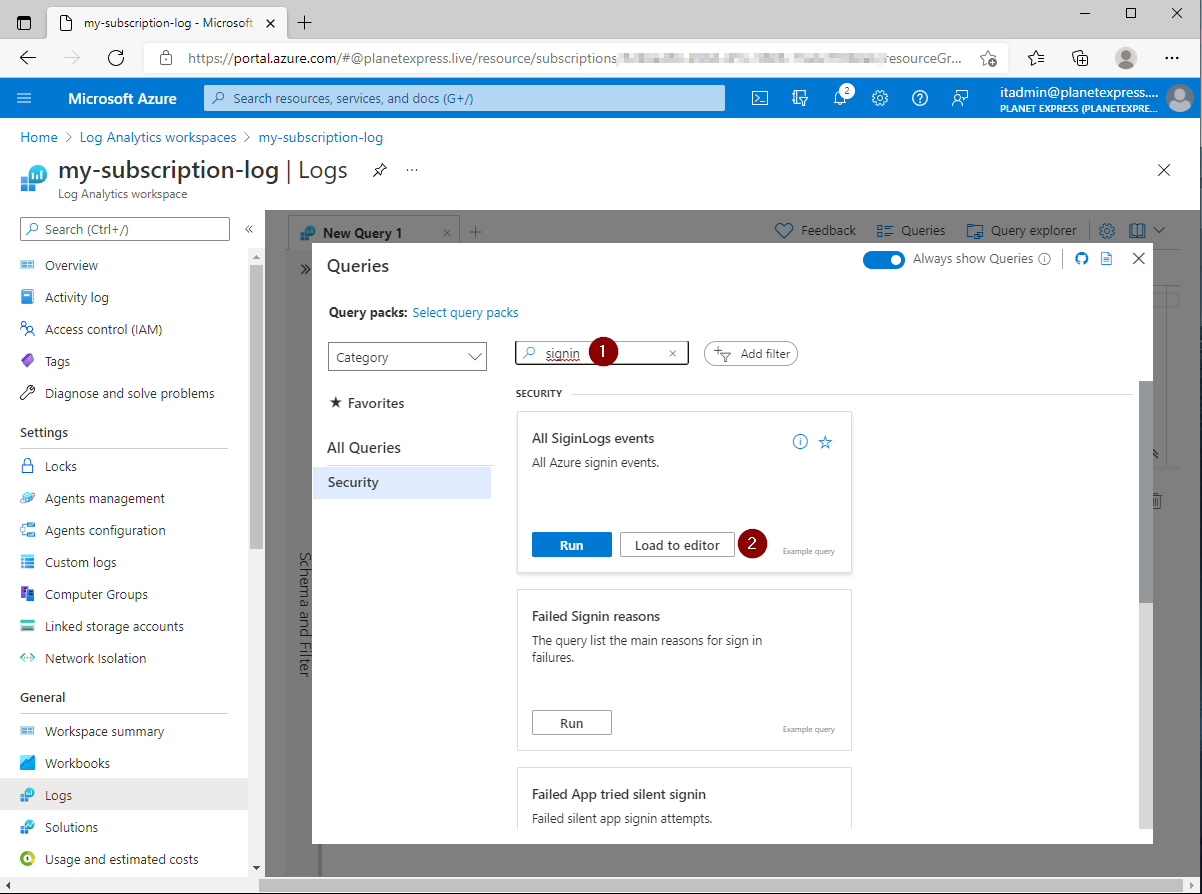
You can use the queries browser to find example queries:
Search for signin
Select All SigninLogs events - Load to editor
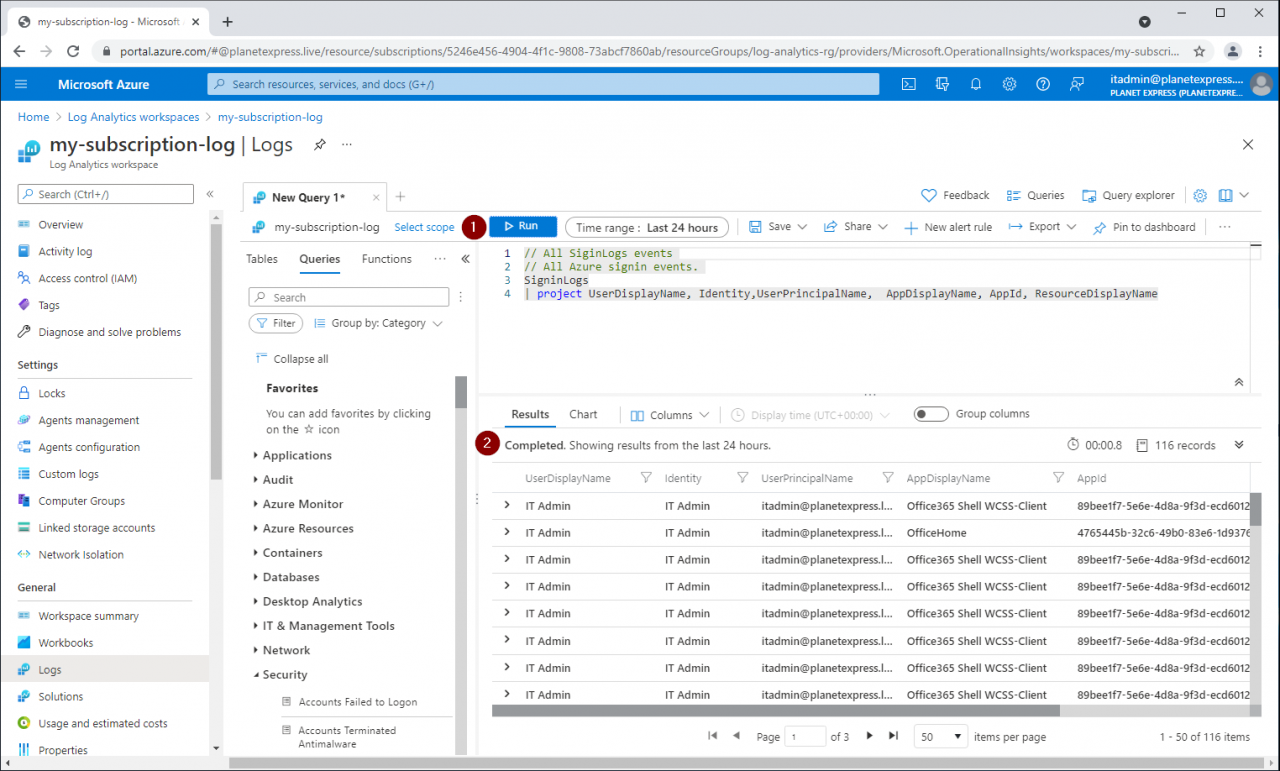
Run the query
// All SiginLogs events
// All Azure signin events.
SigninLogs
| project UserDisplayName, Identity,UserPrincipalName,AppDisplayName, AppId, ResourceDisplayName
The results show AAD sign-ins from the last 24 hours
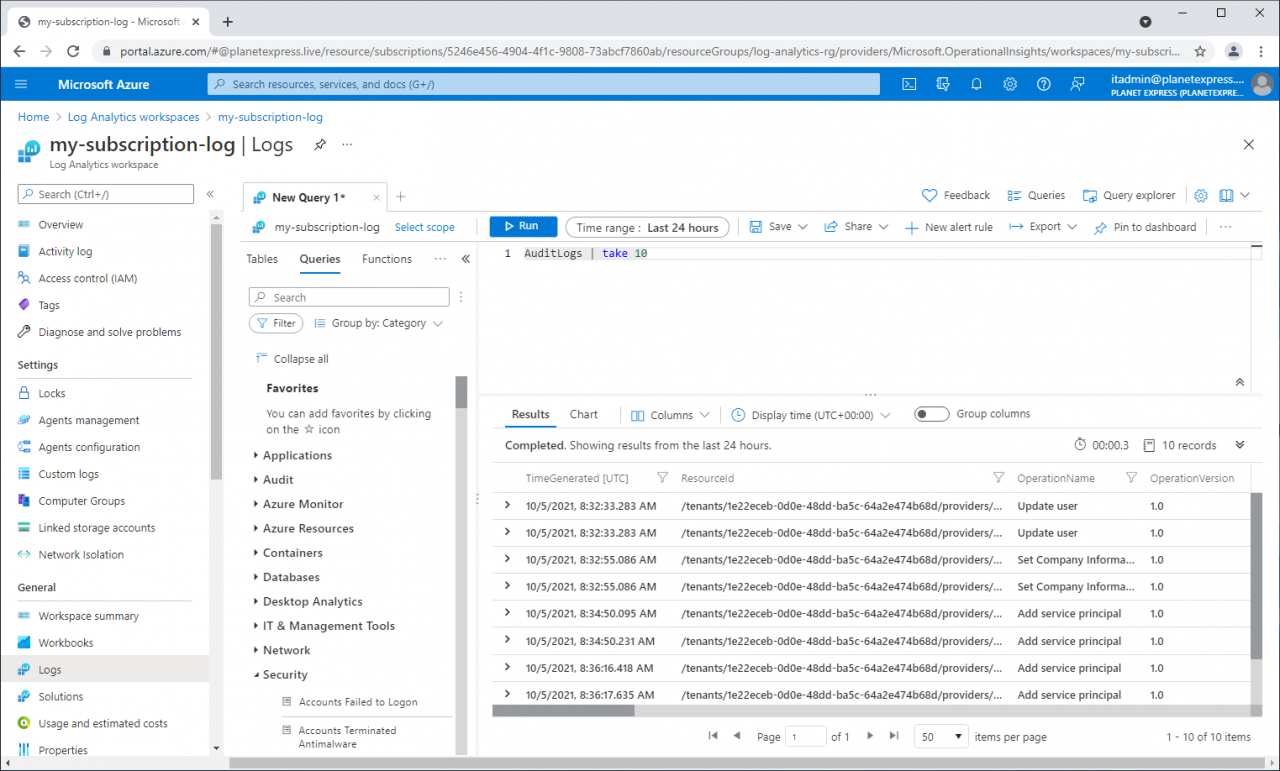
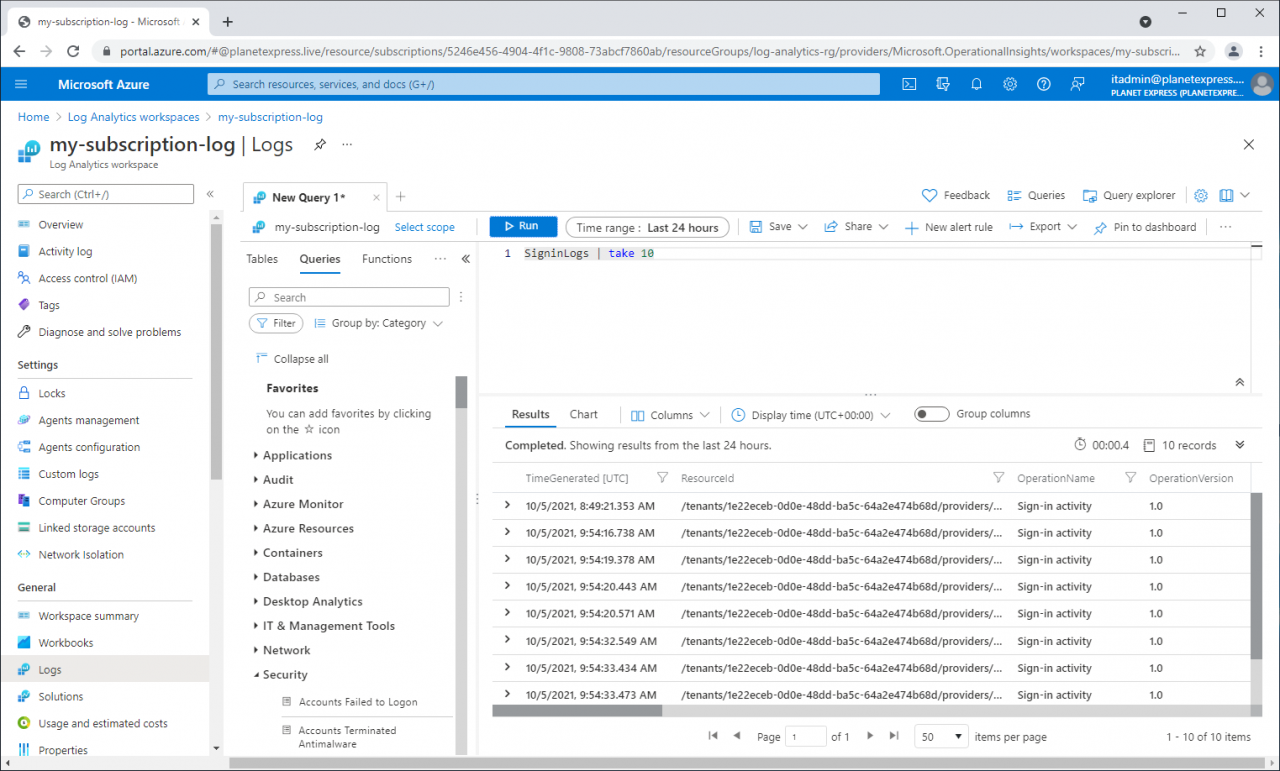
We can run these simple queries to check if AAD sign-in and audit data are available in Log analytics.
AuditLogs | take 10
SigninLogs | take 10
Why cant I see any Azure sign-in data in Log Analytics?
Run these queries to check if AAD log data is available in Log AnalyticsSigninLogs | take 10
AuditLogs | take 10
How long does Azure AD store reporting data?
https://docs.microsoft.com/en-us/azure/active-directory/reports-monitoring/reference-reports-data-retentionHow soon can I see activities data after getting a premium license?
by Author
If you already have activities data with your free license, then you can see it immediately on upgrade. If you don't have any data, then it will take up to three days for the data to show up in the reports after you upgrade to a premium license.
// Signin Locations
// Failed and successful sign-ins by source location.
SigninLogs
| summarize Successful=countif(ResultType==0), Failed=countif(ResultType!=0) by Location

// Failed MFA challenge
// Highlights sign in failures caused by failed MFA challenge.
SigninLogs
| where ResultType == 50074
| project UserDisplayName, Identity,UserPrincipalName, ResultDescription,  AppDisplayName, AppId, ResourceDisplayName
| summarize FailureCount=count(), FailedResources=dcount(ResourceDisplayName), ResultDescription=any(ResultDescription) by UserDisplayName
References:
az monitor log-analytics workspace
https://docs.microsoft.com/en-us/cli/azure/monitor/log-analytics/workspaceIntegrate Azure AD logs with Azure Monitor logs
https://docs.microsoft.com/en-us/azure/active-directory/reports-monitoring/howto-integrate-activity-logs-with-log-analyticsManage access to log data and workspaces in Azure Monitor
by Author
https://docs.microsoft.com/en-us/azure/azure-monitor/logs/manage-access
Comments