You can help support this website by buying me a coffee!

How to Connect to Exchange Online PowerShell using an App registration and self-signed Certificate from an Azure Automation Account Runbook
Follow the steps in this guide to create an Azure AD App registration and self-signed certificate
Connect to Exchange Online using App Registration and Certificate
https://techlabs.blog/categories/automation/connect-to-exchange-online-using-app-registration-and-certificate
$RGName = "exchange-online-test-rg"
$Location = "UK West"
$Subscription = "Azure subscription 1"

Connect-AzAccount -Subscription $Subscription
New-AzResourceGroup -Name $RGName -Location $Location
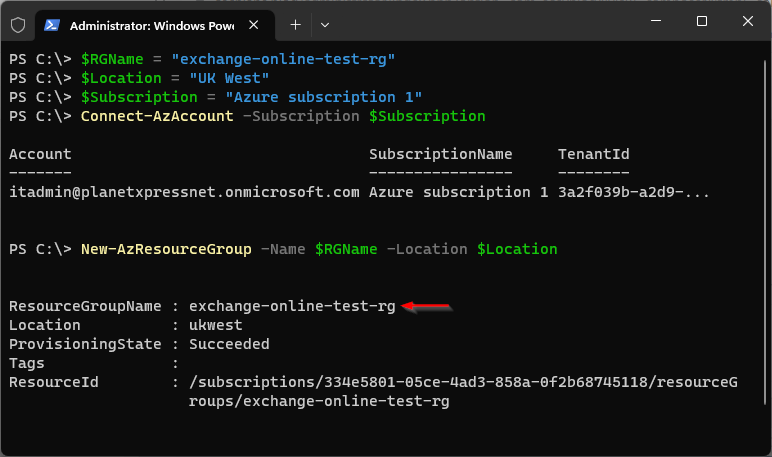
$RGName = "exchange-online-test-rg"
$AAccountName = "exchange-online-test-aa"
$Location = "UK West"
$Subscription = "Azure subscription 1"

New-AzAutomationAccount -ResourceGroupName $RGName -Name $AAccountName -Location $Location

Automation accounts - open Automation account "exchange-online-test-aa"
Certificates - Add a certificate

Enter certificate details
Name exotest.planetxpress.net
Browse for the certificate pfx file
Enter certificate password

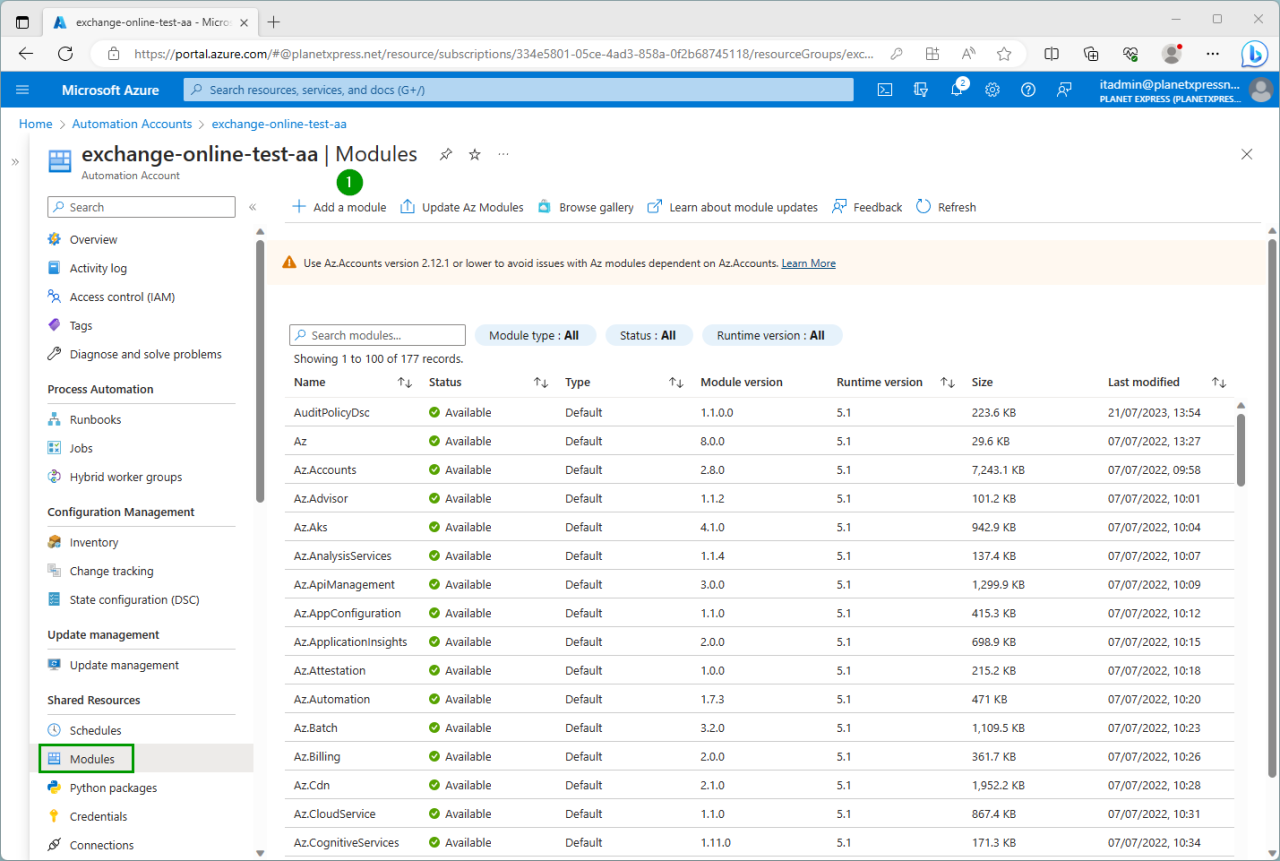
Browse from gallery
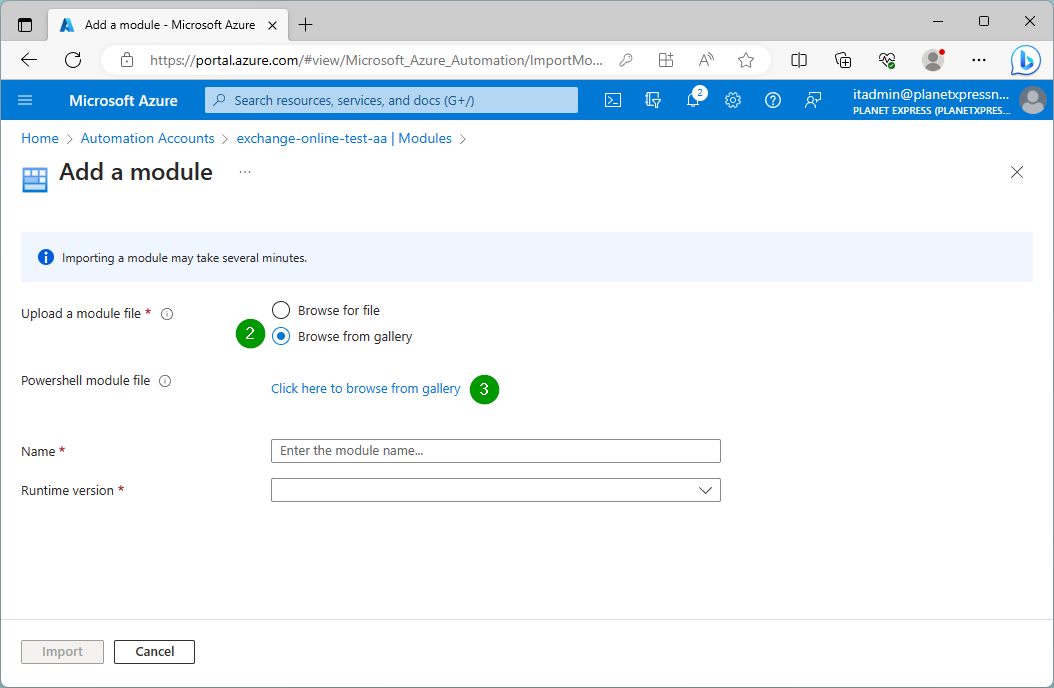
Click here to browse from galllery
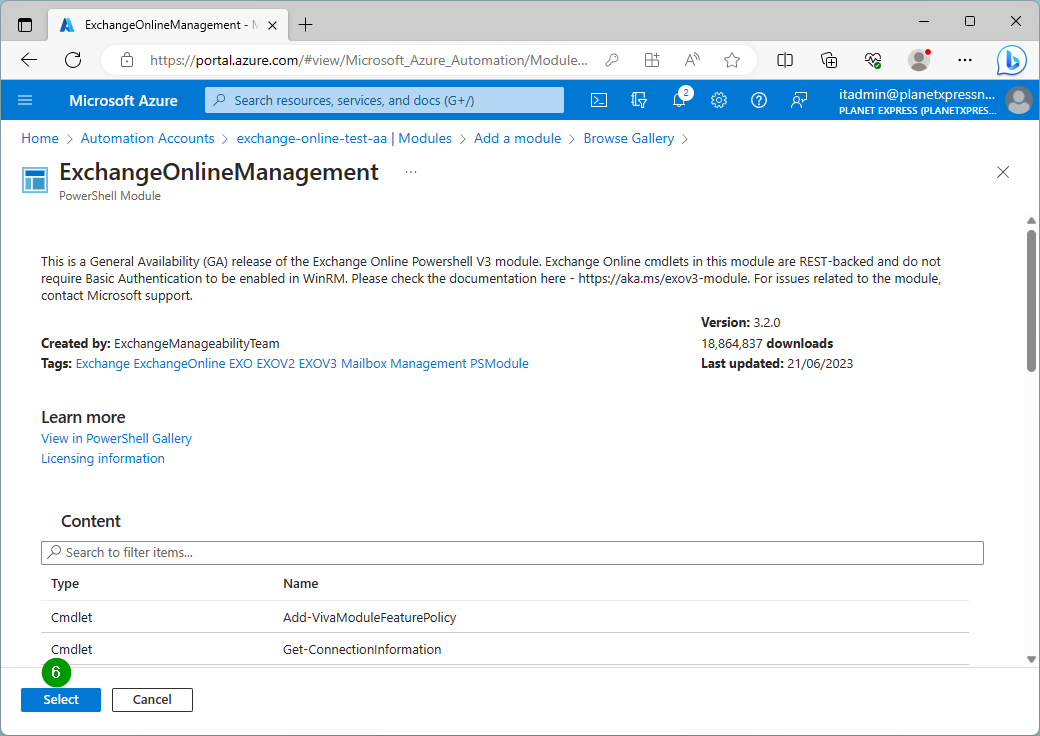
Search for Exchange Online and select the Exchange Online Management module

Click Select
Runtime version: 5.1
Click Import

Filter modules by status "Importing"

Wait for the module to finish importing before continuing


Repeat the steps to import the PackageManagement and PowerShellGet modules
Automation Account
Runbooks - Create a runbook
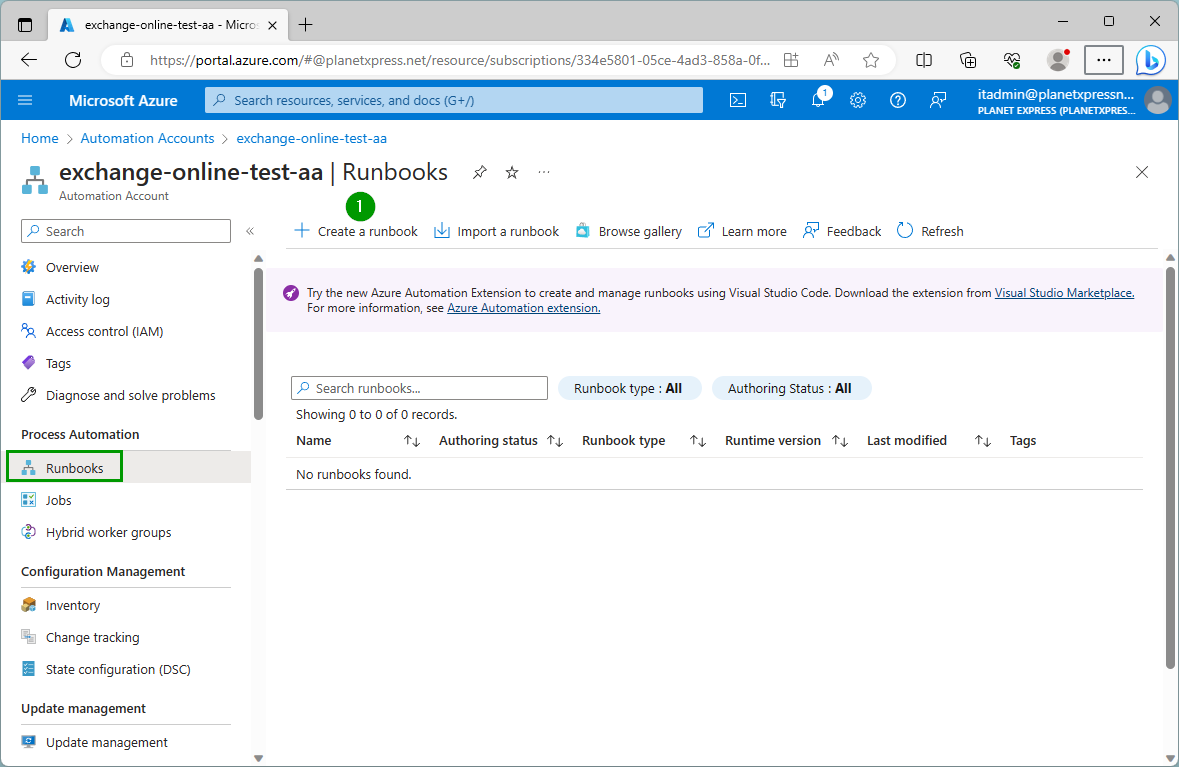
Name: connect-exchange-online
Runbook type: PowerShell
Runtime version: 5.1
Click Create

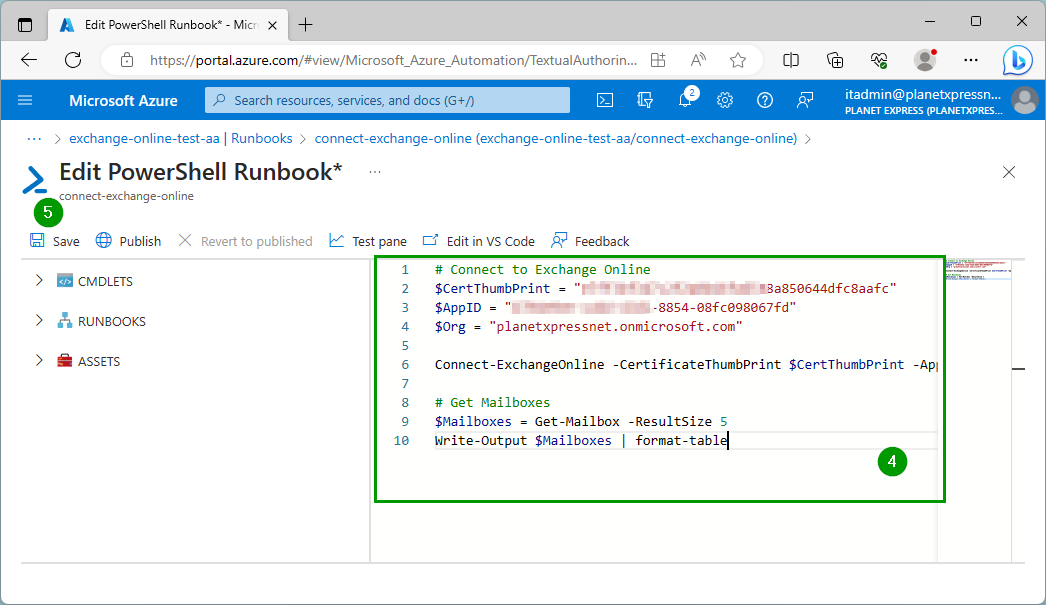
Copy and paste the PowerShell, then click Save
# Connect to Exchange Online
$CertThumbPrint = "xxxxxxxxxxxxxxx0b46fa6558a850644dfc8aafc"
$AppID = "xxxxxxxx-xxxx-xxxx-8854-08fc098067fd"
$Org = "planetxpressnet.onmicrosoft.com"

Connect-ExchangeOnline -CertificateThumbPrint $CertThumbPrint -AppID $AppID -Organization $Org

# Get Mailboxes
$Mailboxes = Get-Mailbox -ResultSize 5
Write-Output $Mailboxes | format-table
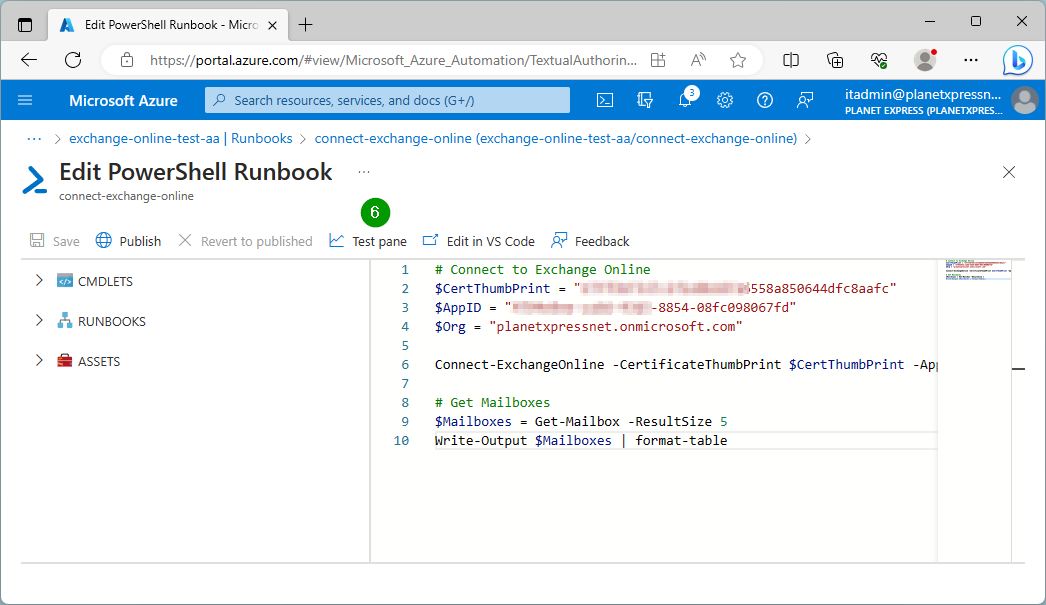
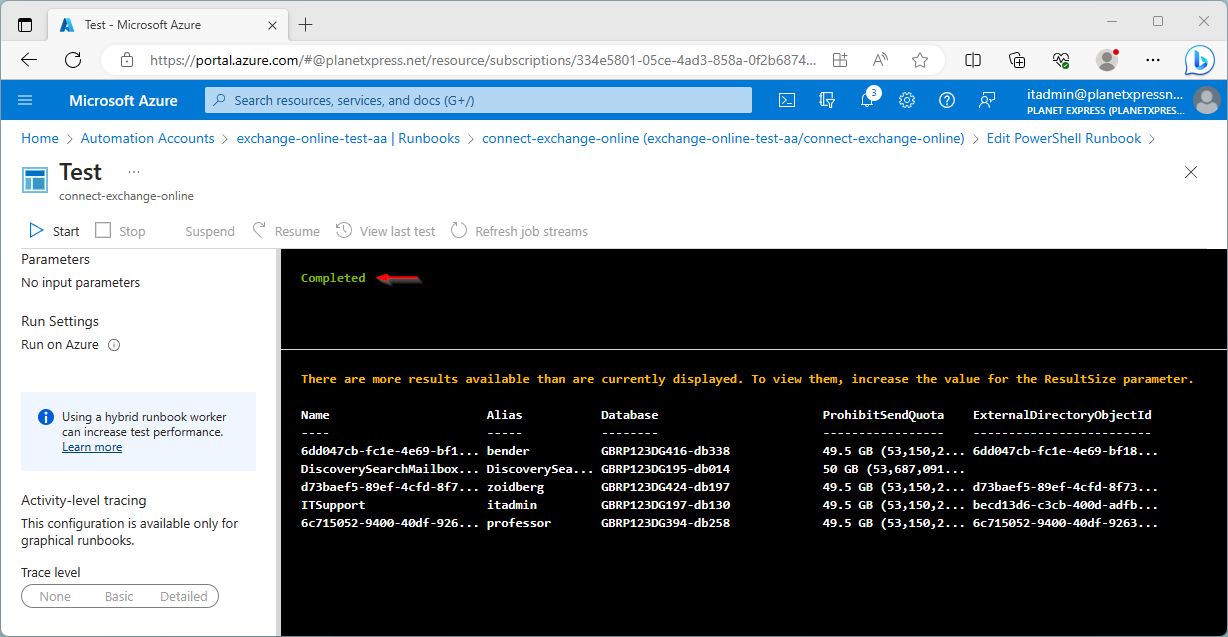
Open the Test pane
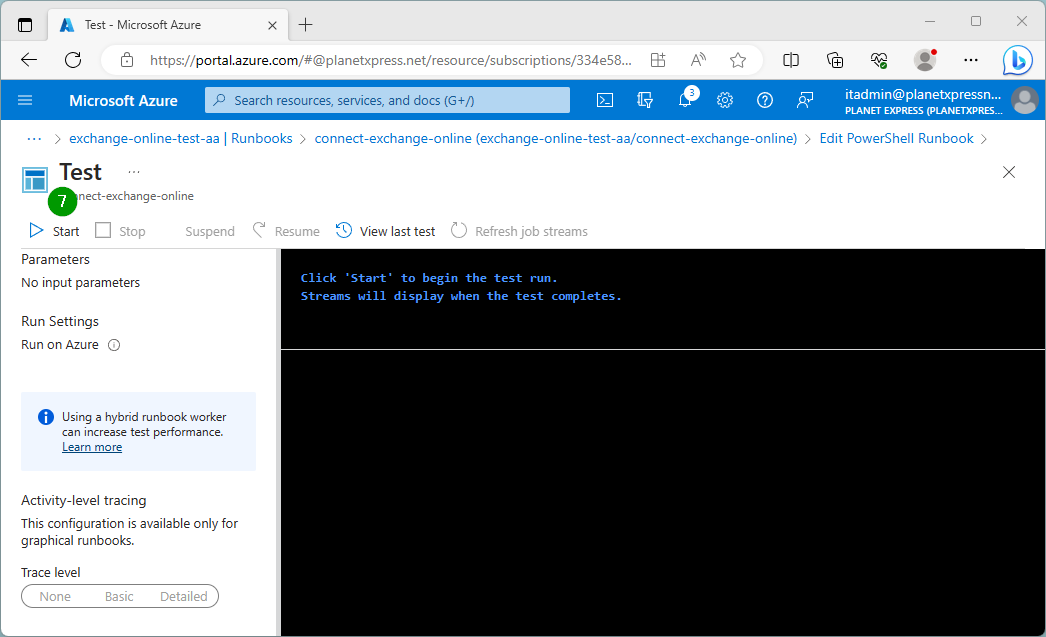
Start test
References:
by Author
App-only authentication for unattended scripts in Exchange Online PowerShell
https://learn.microsoft.com/en-us/powershell/exchange/app-only-auth-powershell-v2
Comments