You can help support this website by buying me a coffee!

How to connect to Exchange Online using System Managed Identity from an Azure Runbook: Create an Azure Automation account and enable System Managed Identity. Assign Exchange Administrator role and Graph permissions to System Managed Identity. Import PowerShell Modules to Automation Account and create a PowerShell Runbook
# Install NuGet
Install-PackageProvider -Name NuGet -Force

# Install PowerShellGet
Install-Module -Name PowerShellGet -Force

# Set execution policy to remote signed
Set-ExecutionPolicy -ExecutionPolicy RemoteSigned

# Install Azure module
Install-Module -Name Az -Repository PSGallery -Force

# Sign into Azure
Connect-AzAccount
# Install AzureAD module
Install-Module AzureAD -Force

# Connect to Azure AD
Connect-AzureAD
# Connect to Azure
Connect-AzAccount

# Create resource group
New-AzResourceGroup -Name account-changes-rg -Location "UK West"
$RGName = "account-changes-rg"
$AAccountName = "account-changes-aa"
$Location = "UK West"

New-AzAutomationAccount -ResourceGroupName $RGName -Name $AAccountName -Location $Location

Enable Automation Account System assigned Managed Identity using PowerShell
$RGName = "account-changes-rg"
$AAccountName = "account-changes-aa"

Set-AzAutomationAccount -ResourceGroupName $RGName -Name $AAccountName -AssignSystemIdentity
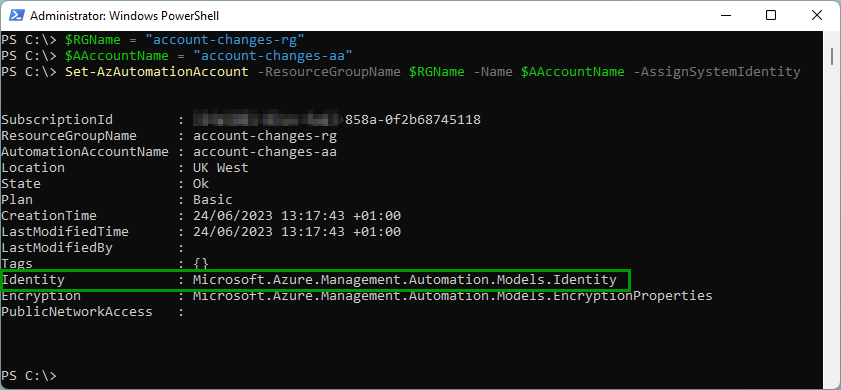
Automation Account
Account settings - Identity
System assigned
Status: On

When you enable a System assigned Managed Identity an Azure AD Enterprise app is created.
You can check the Managed Identity's Application ID in Azure AD
Azure AD - Enterprise applications
Filter by application type: Managed identities
Open the Managed Identity Enterprise app


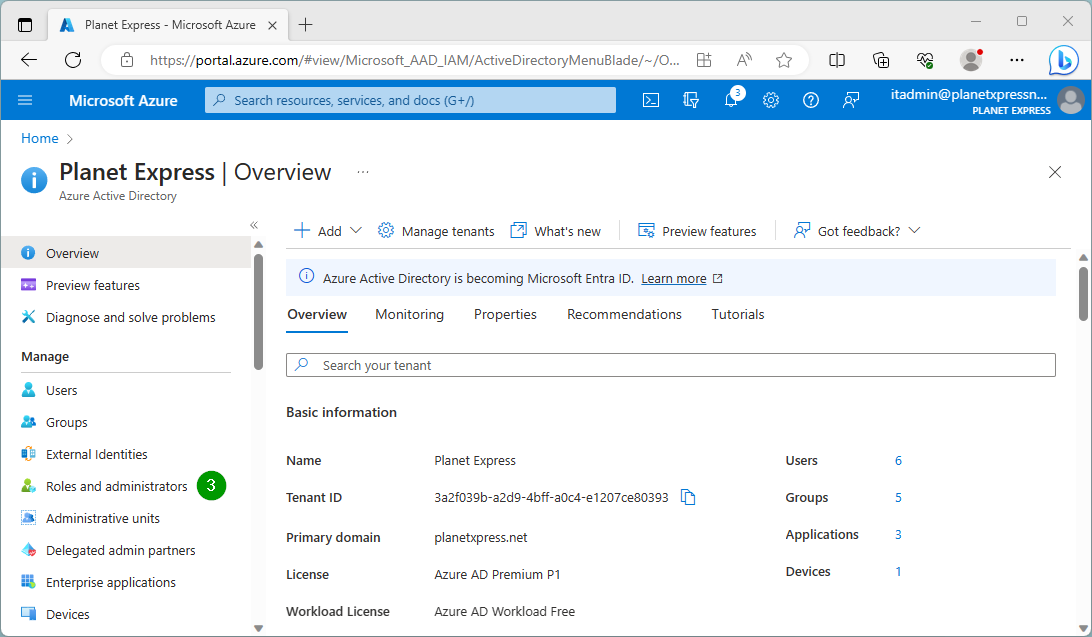
Azure AD - Roles and administrators
Search for exchange
Select Exchange Administrator role

Add assignments

Search for the automation account name
Select the system managed identity - Add
Azure AD - Overview
Copy the Tenant ID

Azure AD - Enterprise applications

Filter by Application type - Managed Identities
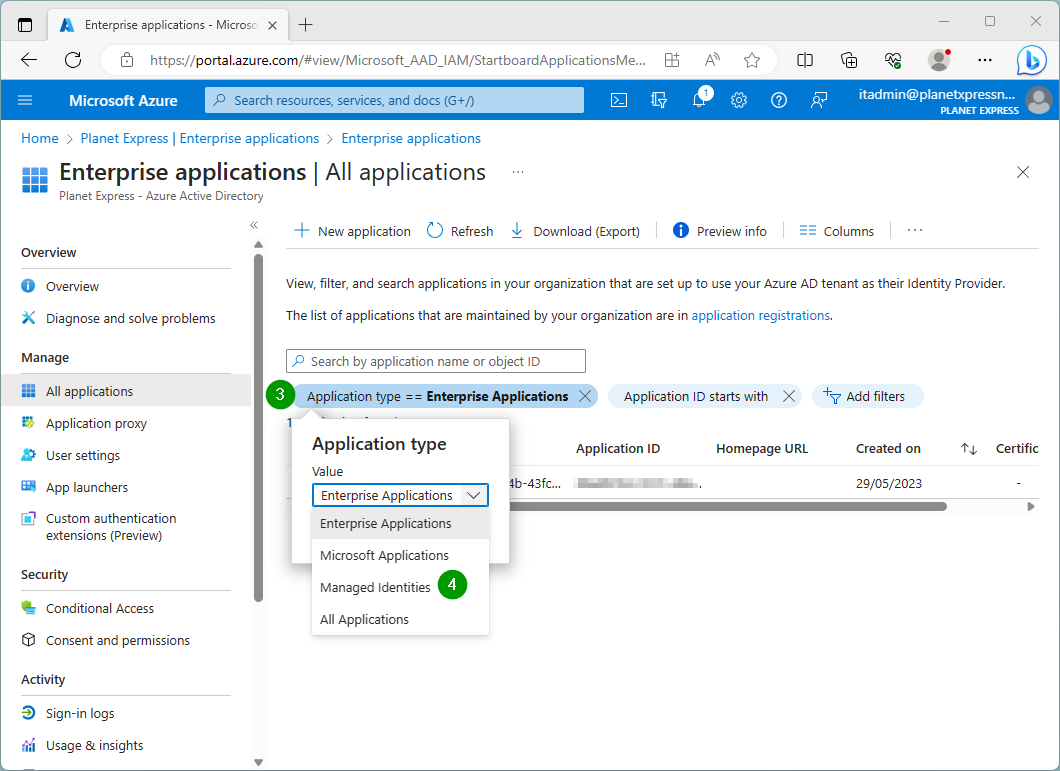
Select managed identity

Copy the Object ID

Use the following PowerShell to export a list of MS Graph roles
Connect-AzureAD

$TenantID="xxxxxxxx-xxxx-xxxx-a0c4-e1207ce80393"
$GraphAppID = '00000003-0000-0000-c000-000000000000'
$GraphServicePrincipal = Get-AzureADServicePrincipal -Filter "appId eq '$GraphAppID'"

$GraphServicePrincipal.AppRoles > C:\temp\graph-roles.txt
Assign MS Graph permissions to System assigned Managed Identity using PowerShell New-AzureAdServiceAppRoleAssignment
Application.Read.All
Allows the app to read all applications and service principals
$TenantID="xxxxxxxx-xxxx-xxxx-a0c4-e1207ce80393"
$GraphAppID = '00000003-0000-0000-c000-000000000000'
$MIName="account-changes-aa"
$PermissionName = "Application.Read.All"

Connect-AzureAD -TenantId $TenantID

$MI = (Get-AzureADServicePrincipal -Filter "displayName eq '$MIName'")
$GraphServicePrincipal = Get-AzureADServicePrincipal -Filter "appId eq '$GraphAppID'"

$AppRole = $GraphServicePrincipal.AppRoles | Where-Object {$_.Value -eq $PermissionName -and $_.AllowedMemberTypes -contains "Application"}

New-AzureAdServiceAppRoleAssignment -ObjectId $MI.ObjectId -PrincipalId $MI.ObjectId -ResourceId $GraphServicePrincipal.ObjectId -Id $AppRole.Id

The following PowerShell grants Exchange Manage as App permissions to the System assigned Managed Identity
| $MI.ObjectId | System assigned Managed Identity Enterprise App Object ID |
| $ExoAppID | Office 365 Exchange Online AppId 00000002-0000-0ff1-ce00-000000000000 |
| $ExchangeSP.ObjectId | Office 365 Exchange Online Object ID |
| $AppRole.Id | Office 365 Exchange Online Exchange.ManageAsApp role ID |
$TenantID="xxxxxxxx-xxxx-xxxx-a0c4-e1207ce80393"
$MIName="account-changes-aa"
$ExoAppID = "00000002-0000-0ff1-ce00-000000000000"
$PermissionName = "Exchange.ManageAsApp"

Connect-AzureAD -TenantId $TenantID

$MI = (Get-AzureADServicePrincipal -Filter "displayName eq '$MIName'")
$ExchangeSP = Get-AzureADServicePrincipal -filter "AppId eq '$ExoAppID'"

$AppRole = $ExchangeSP.AppRoles | Where-Object {$_.Value -eq $PermissionName -and $_.AllowedMemberTypes -contains "Application"}

New-AzureAdServiceAppRoleAssignment -ObjectId $MI.ObjectId -PrincipalId $MI.ObjectId -ResourceId $ExchangeSP.ObjectId -Id $AppRole.Id
Automation accounts - select Automation account
Modules - Add a module
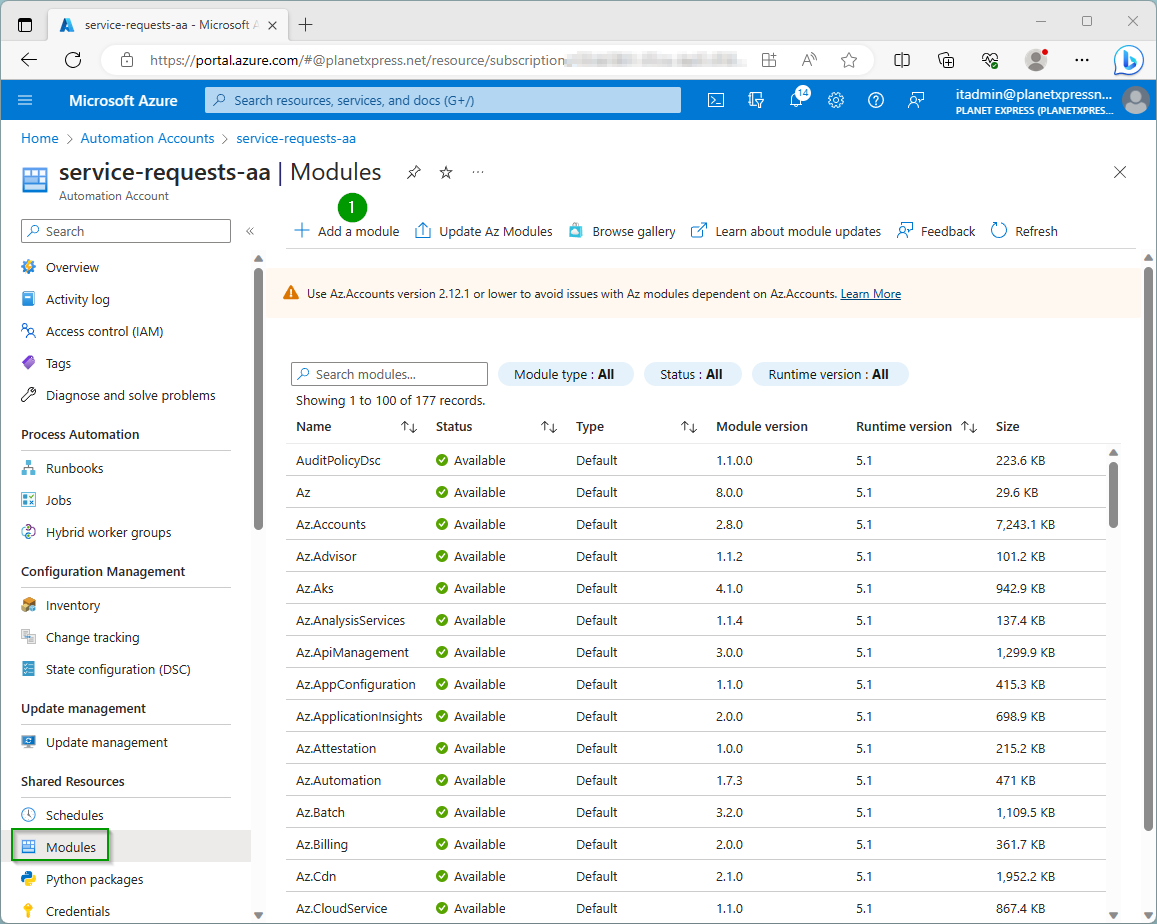
Browse from gallery
Click here to browse from gallery

Search for exchange
Select Exchange Online Management

Click Select
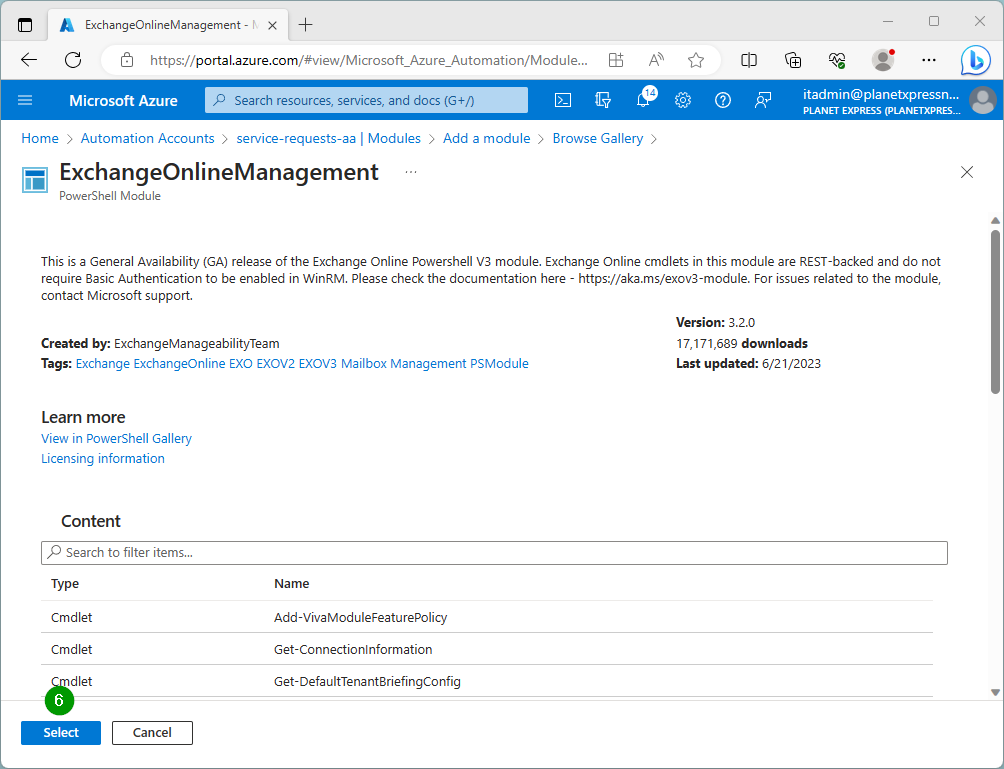
Runtime version: 5.1
Click Import

Wait for the module to finish importing
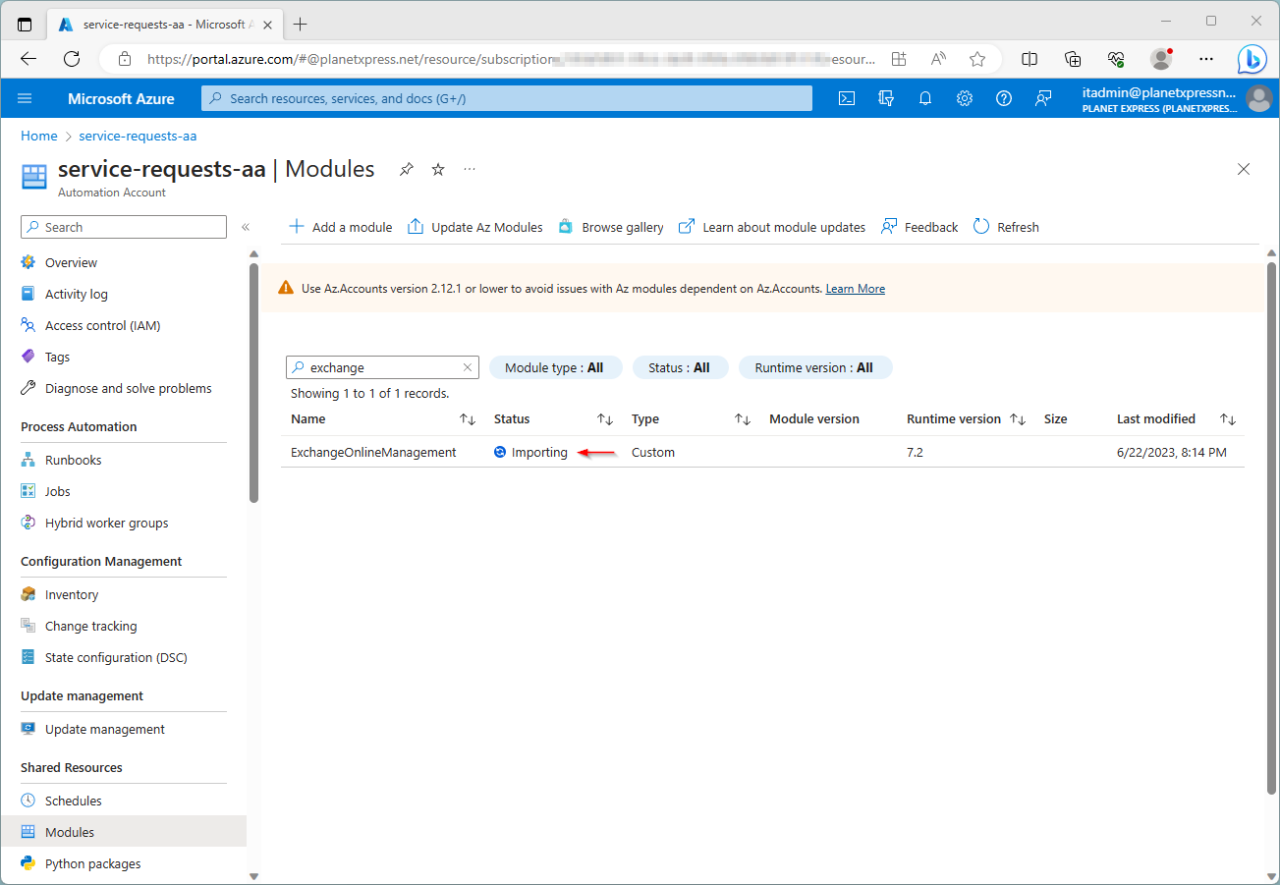
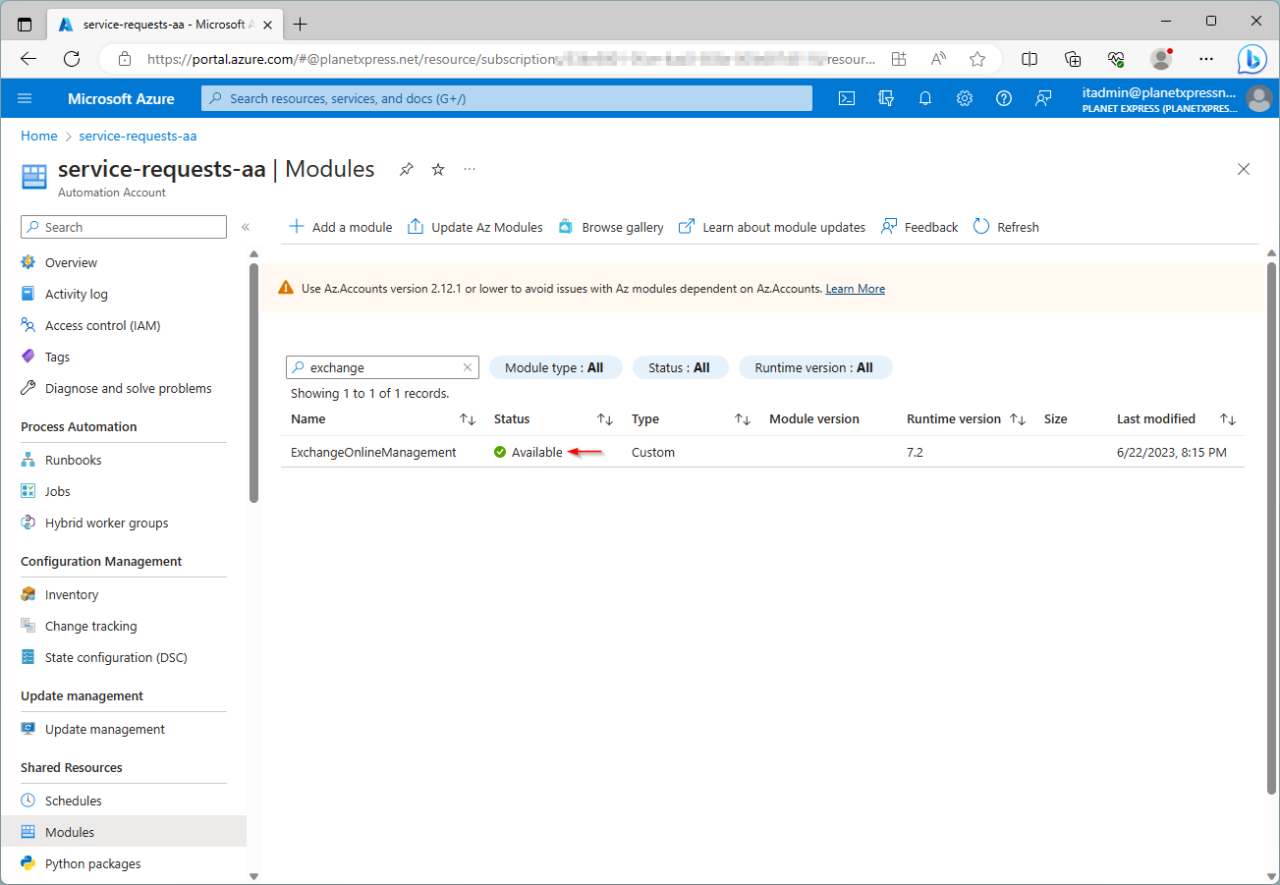
Repeat the steps to import the PackageManagement and PowerShellGet modules
Automation Account - Runbooks - Create a runbook
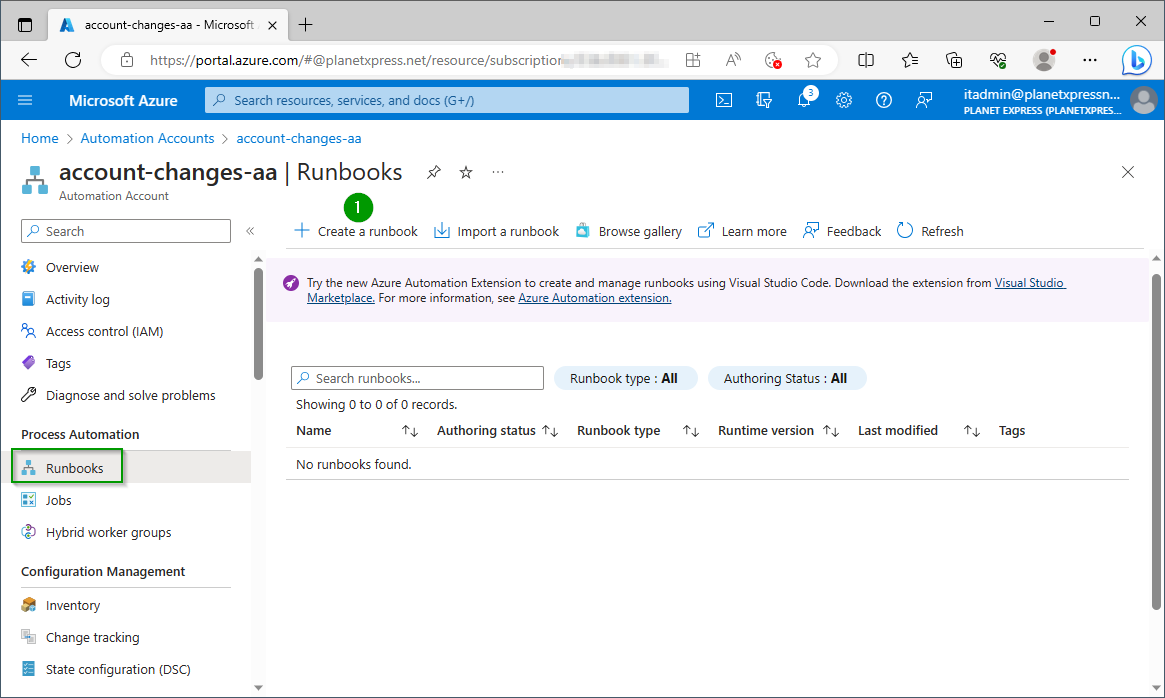
Name: exchange-online-system-mi
Runbook type: PowerShell
Runtime version: 5.1

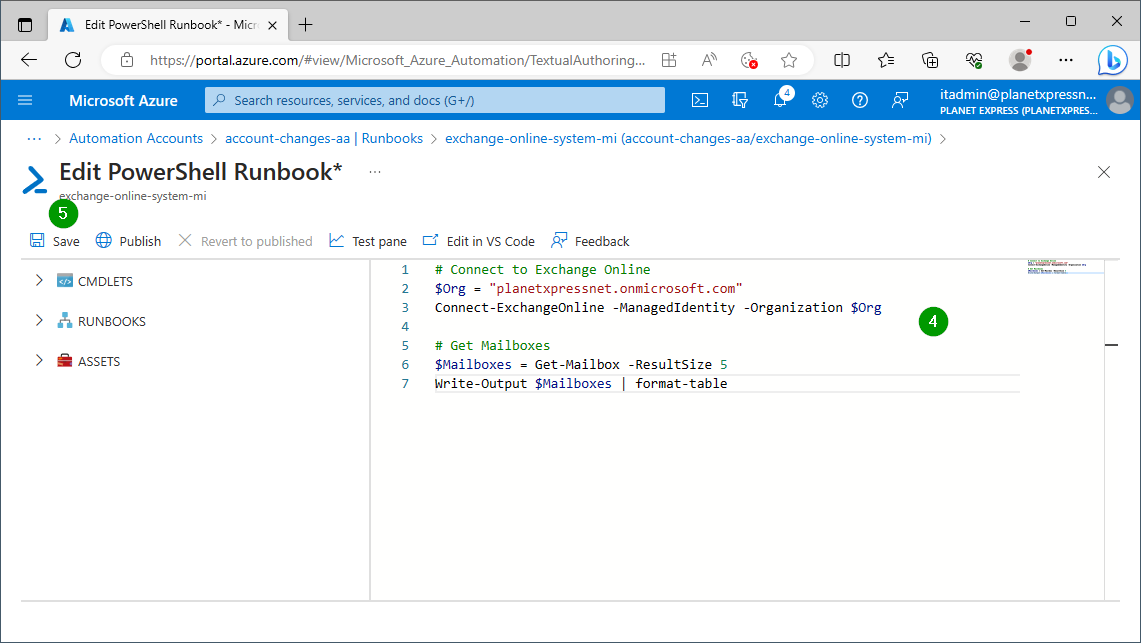
Copy and paste the PowerShell to connect to Exchange online then click Save
# Connect to Exchange Online
$Org = "planetxpressnet.onmicrosoft.com"
Connect-ExchangeOnline -ManagedIdentity -Organization $Org

# Get Mailboxes
$Mailboxes = Get-Mailbox -ResultSize 5
Write-Output $Mailboxes | format-table
Open the Test pane

Click Start


References:
by Author
Azure PowerShell - New AzResourceGroup
https://learn.microsoft.com/en-us/powershell/module/az.resources/new-azresourcegroup
Azure PowerShell - New AzAutomationAccount
https://learn.microsoft.com/en-us/powershell/module/az.automation/new-azautomationaccount
Using a system-assigned managed identity for an Azure Automation account
https://learn.microsoft.com/en-us/azure/automation/enable-managed-identity-for-automation
Use Azure managed identities to connect to Exchange Online PowerShell
https://learn.microsoft.com/en-us/powershell/exchange/connect-exo-powershell-managed-identity
Comments