You can help support this website by buying me a coffee!

Step-by-step for deploying Citrix Workspace app using Intune: Silent install Citrix workspace using Command line, specify StoreFront URL, create intunewin Win32 app package and deploy to test device group. Steps to upgrade Citrix Workspace app from a previous version.
Download the latest version of Citrix Workspace app for Windows
Download Citrix Workspace App
https://www.citrix.com/downloads/workspace-app/windows
| /silent | Do not show any prompts during installation |
| /includeSSON | Install the Single sign-on component |
| /AutoUpdateCheck=disabled | Disable automatic updates |
| /noreboot | Do not restart |
| InstallEmbeddedBrowser=N | Exclude Citrix Embedded Browser |
| ENABLE_SSON=Yes | Enable Single sign-on |
| DONOTSTARTCC=1 | Do not start Connection Center |
| STORE0= | Specify the StoreFront URL |
You can use STORE0= to specify your StoreFront URL.
This example is for Citrix CloudSTORE0="StoreName;https://yourdomain.cloud.com/Citrix/Store/discovery;On;Store Name"
Use the /forceinstall option if you are changing any Citrix Workspace configuration settings, such as the Store URL
:: install.cmd
CitrixWorkspaceApp.exe /silent /includeSSON /AutoUpdateCheck=disabled /noreboot InstallEmbeddedBrowser=N ENABLE_SSON=Yes DONOTSTARTCC=1 STORE0="StoreName;https://yourdomain.cloud.com/Citrix/Store/discovery;On;Store Name"

:: uninstall.cmd
CitrixWorkspaceApp.exe /uninstall /silent
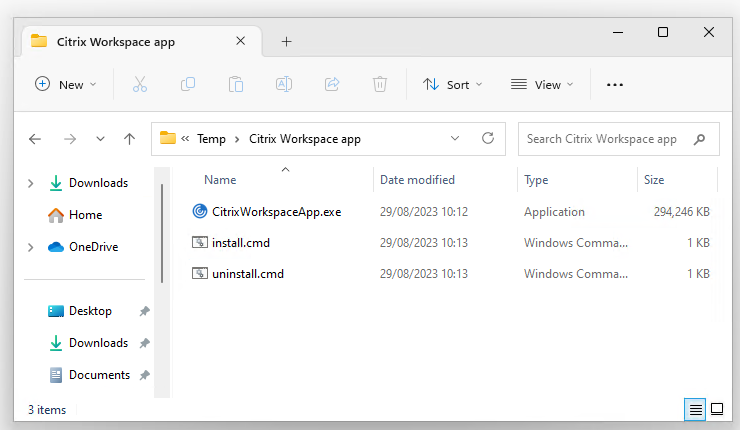
Download Microsoft Win32 Content Prep Tool from GitHub
Microsoft Win32 Content Prep Tool
https://github.com/Microsoft/Microsoft-Win32-Content-Prep-Tool
Extract the downloaded zip file to C:\Temp
-c setup folder containing the files that will be packaged into and .intunewin file
-s setup file e.g. CitrixWorkspaceApp.exe
-o output folder for the .intunewin file
Open Command Prompt (run as Administrator)
"C:\Temp\Microsoft-Win32-Content-Prep-Tool-master\IntuneWinAppUtil.exe" -c "C:\Temp\Citrix Workspace app" -s "C:\Temp\Citrix Workspace app\CitrixWorkspaceApp.exe" -o "C:\Temp\Citrix Workspace app-Intune"
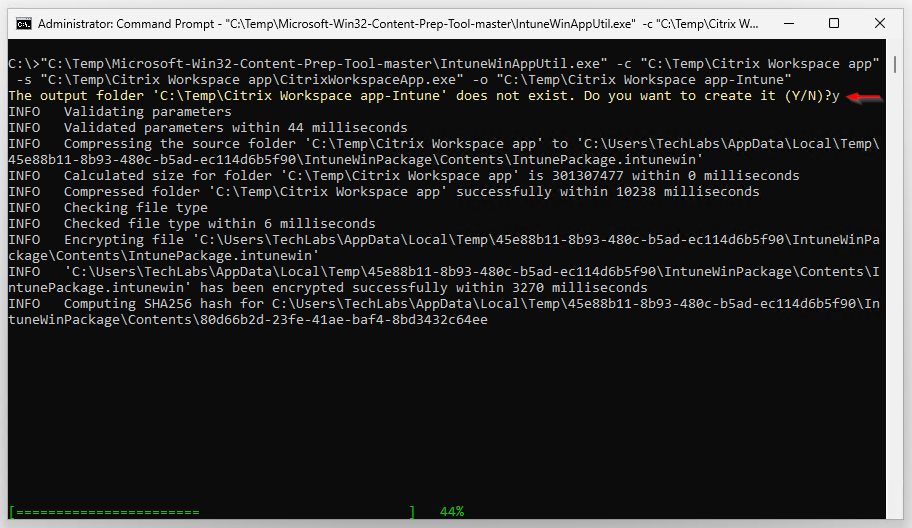
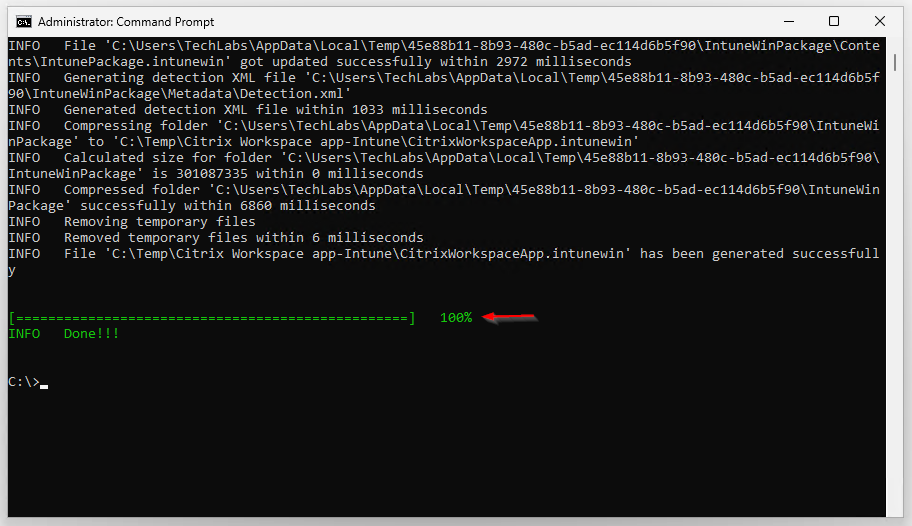
Create an Intune Windows app for deploying Citrix Workspace and assign to a test device group
Create a new device group for testing the Citrix Workspace install
Azure AD - Groups - New Group
Group type: Security
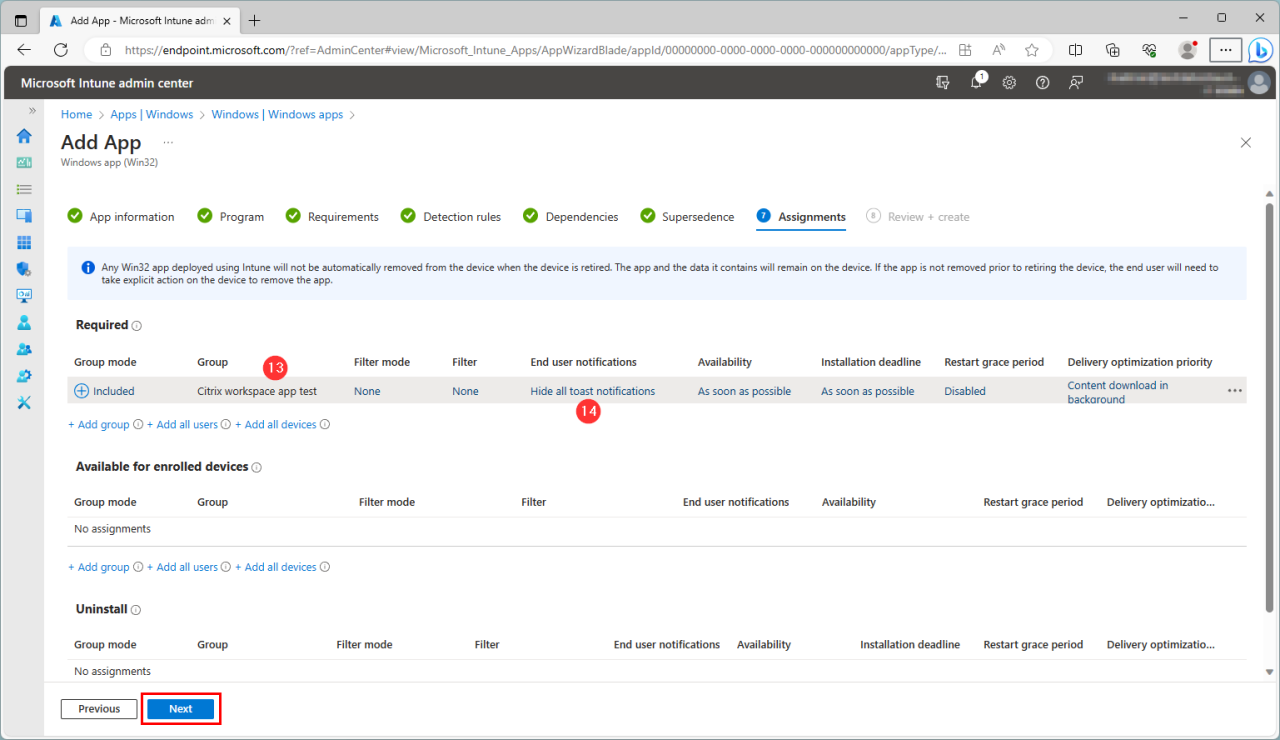
Group name: Citrix workspace app test
Membership type: Assigned
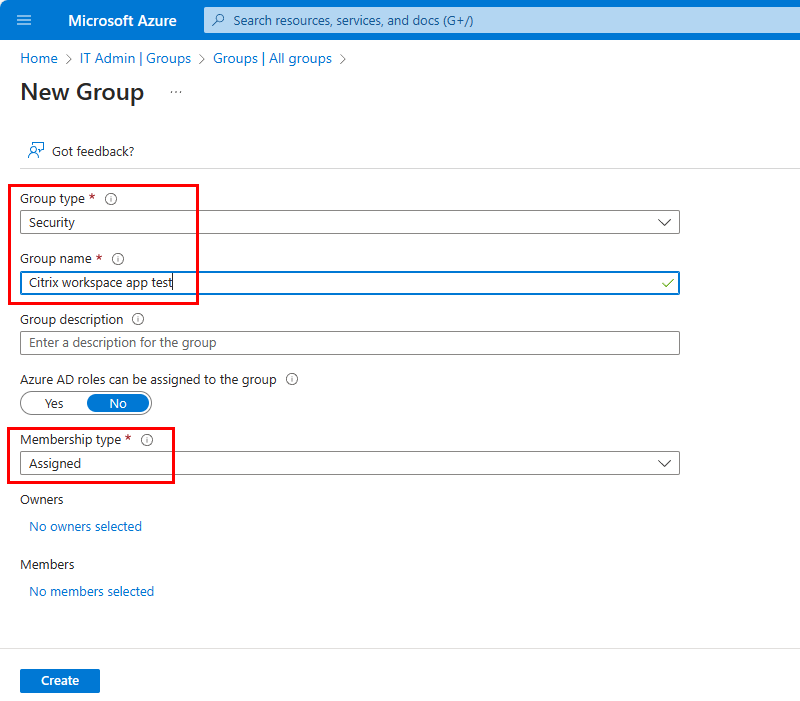
Intune admin center
Apps - Windows apps - Add
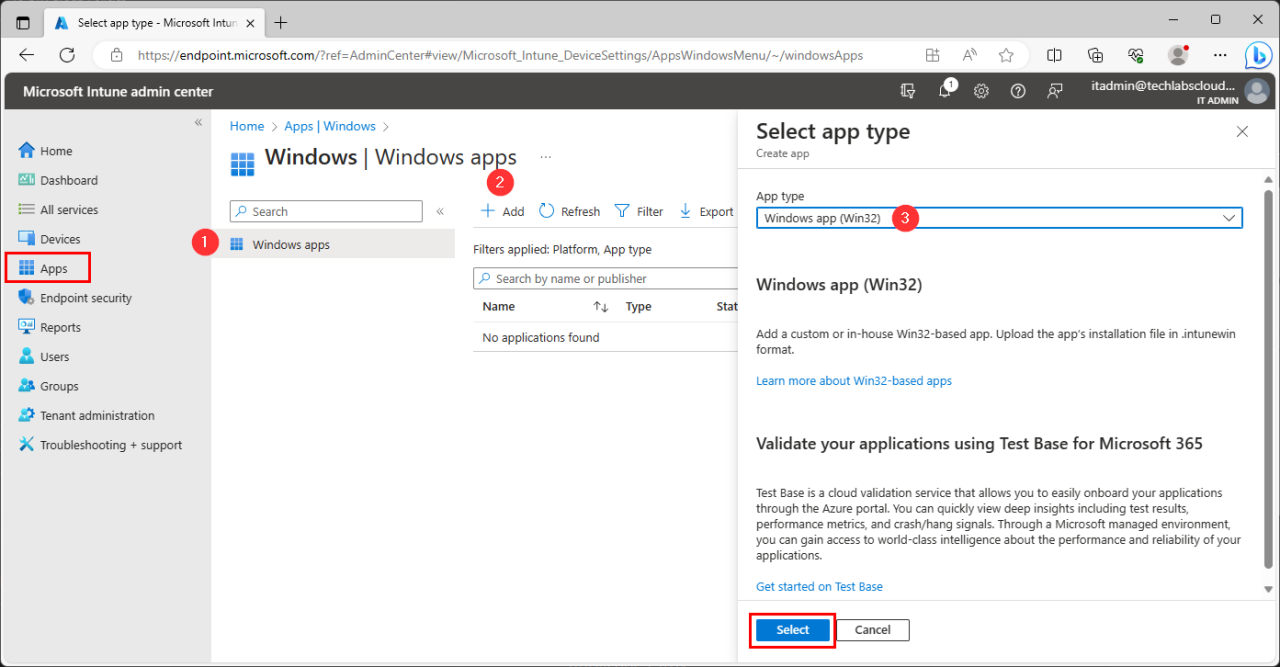
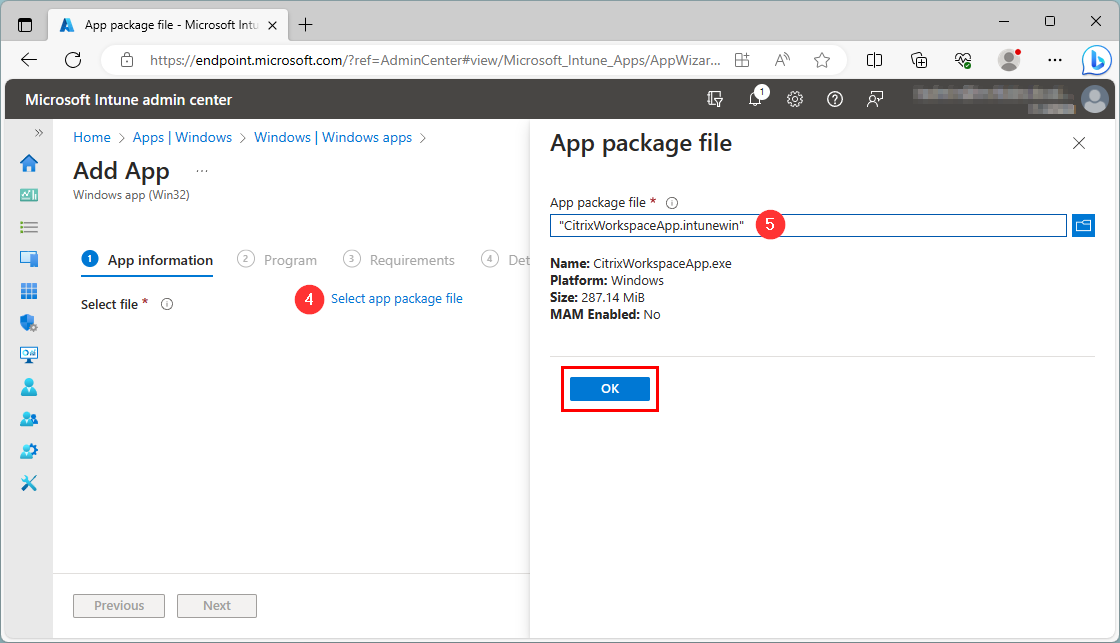
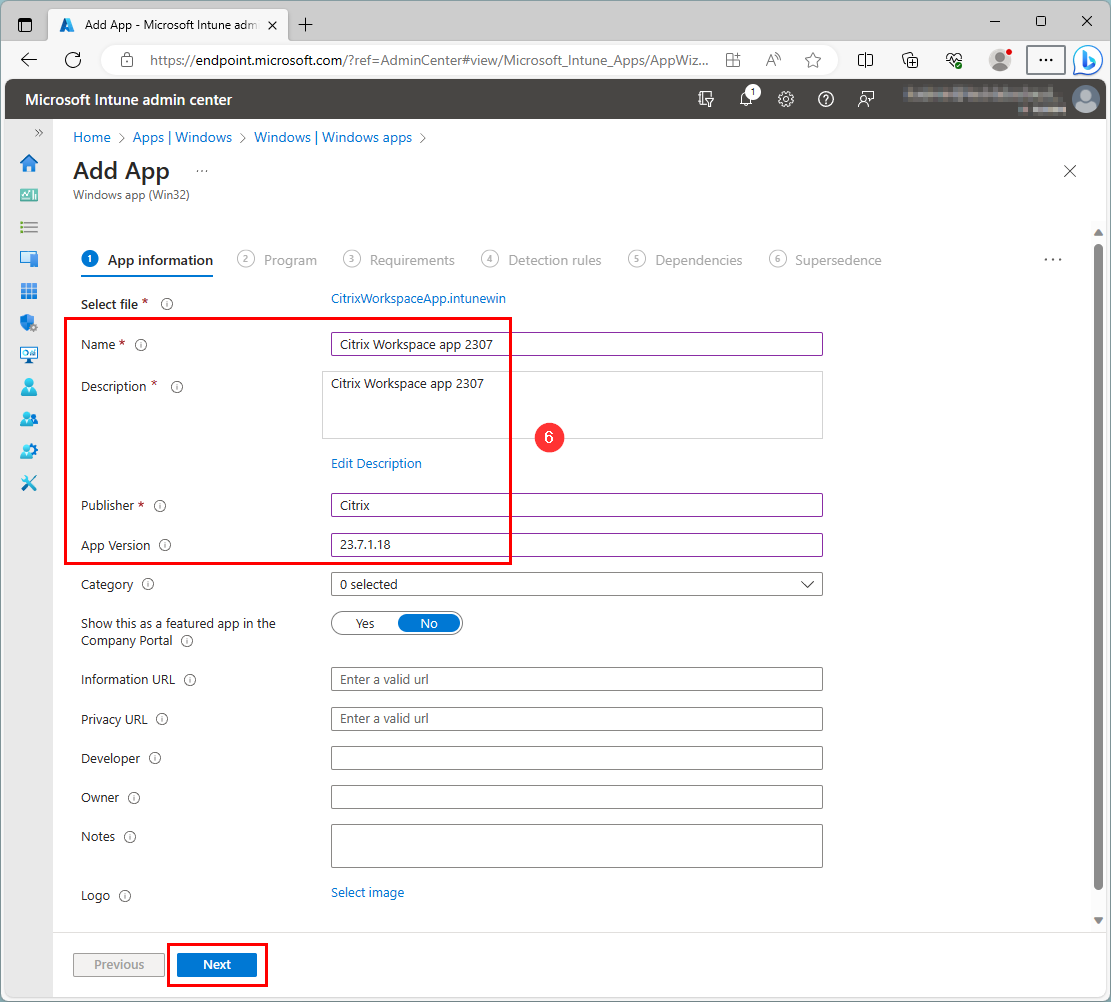
Name: Citrix Workspace app 2307
Description: Citrix Workspace app 2307
Publisher: Citrix
App version: 23.7.1.18
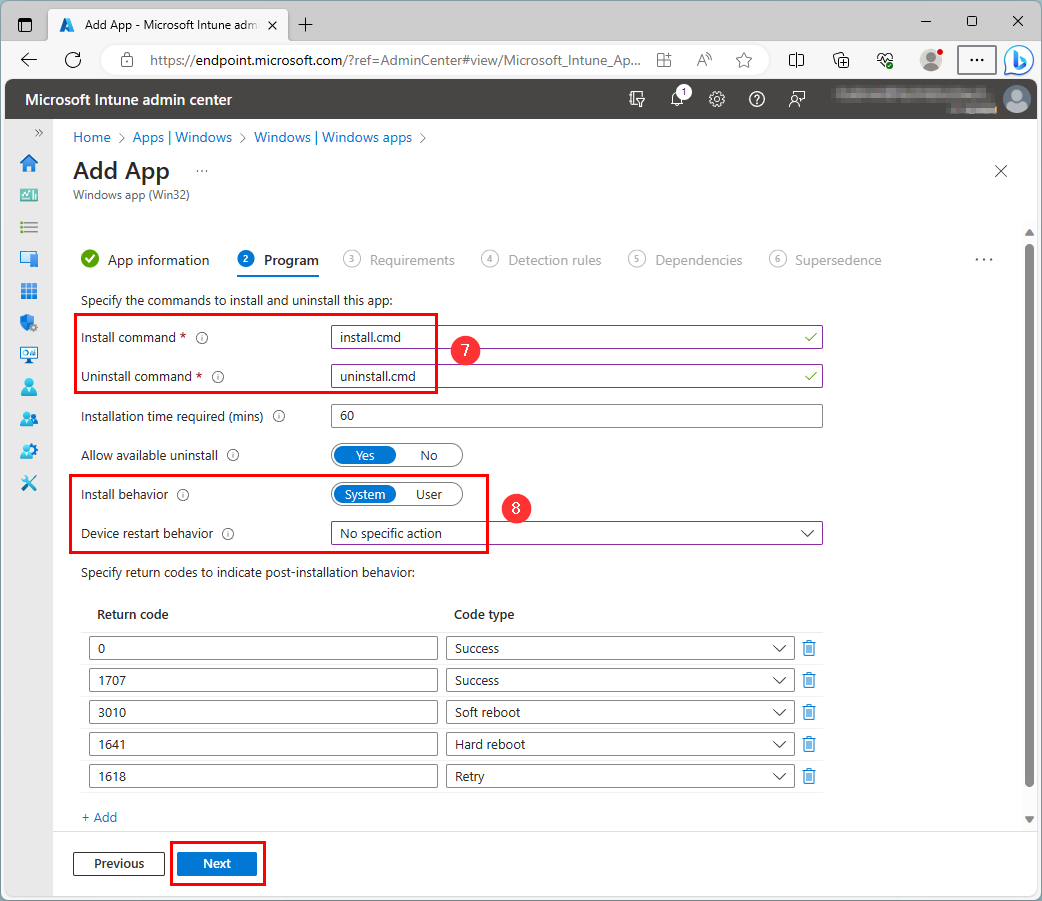
Install command: install.cmd
Uninstall command: uninstall.cmd
Install behaviour: System
Device restart behaviour: No specific action
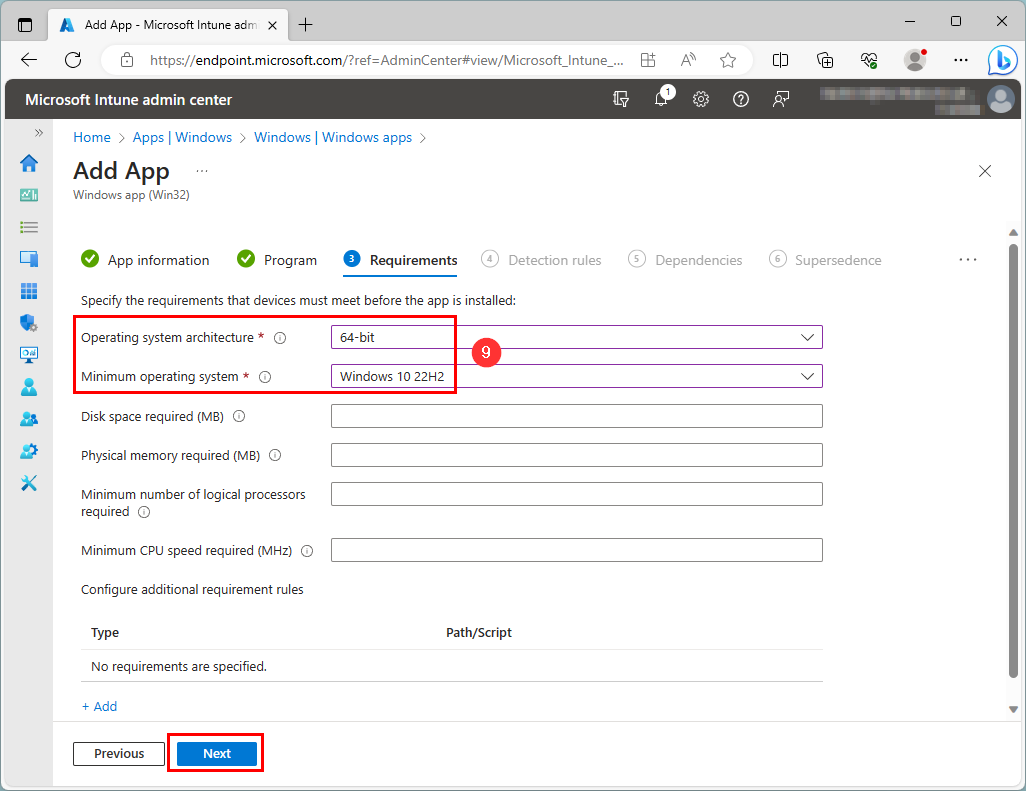
Operating system architecture: 64-bit
Minimum operating system: Windows 10 22H2
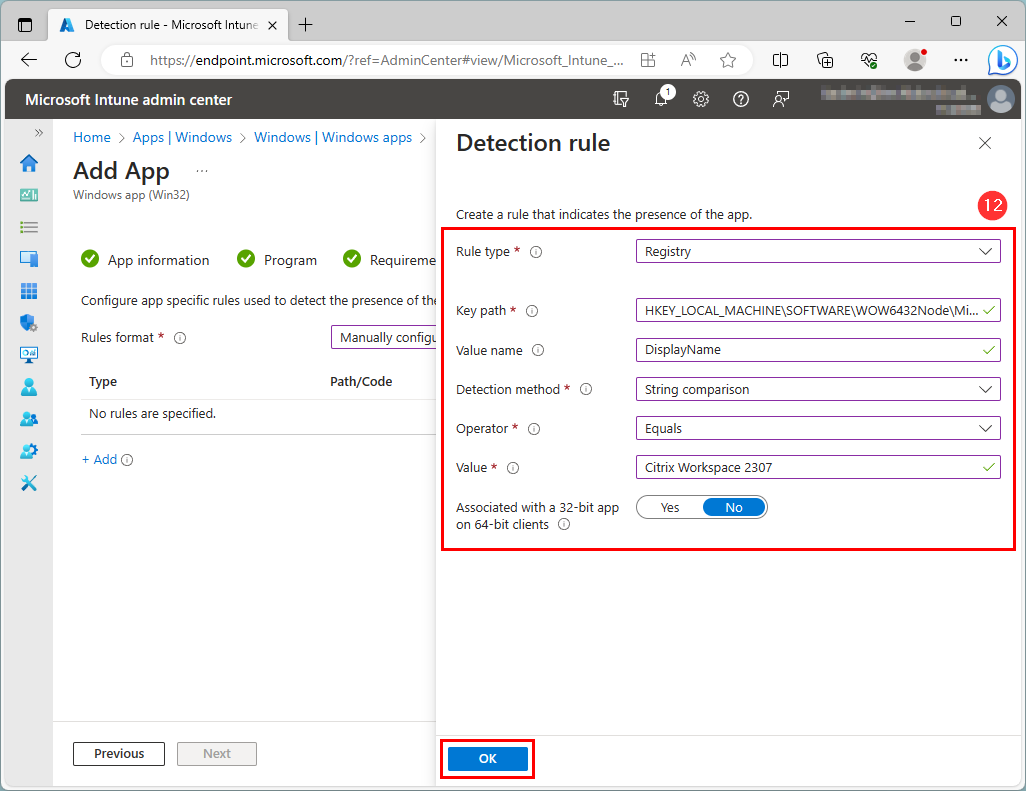
Rules format: Manually configure detection rules
Add rule

Associated with a 32-bit app on 64-bit clients: No
Hide all toast notifications

When Citrix Workspace is installed using Intune, the installation will close Workspace app and disconnect any open Citrix sessions.
To workaround this, make Citrix Workspace app available in Company portal and allow users to install it themselves.
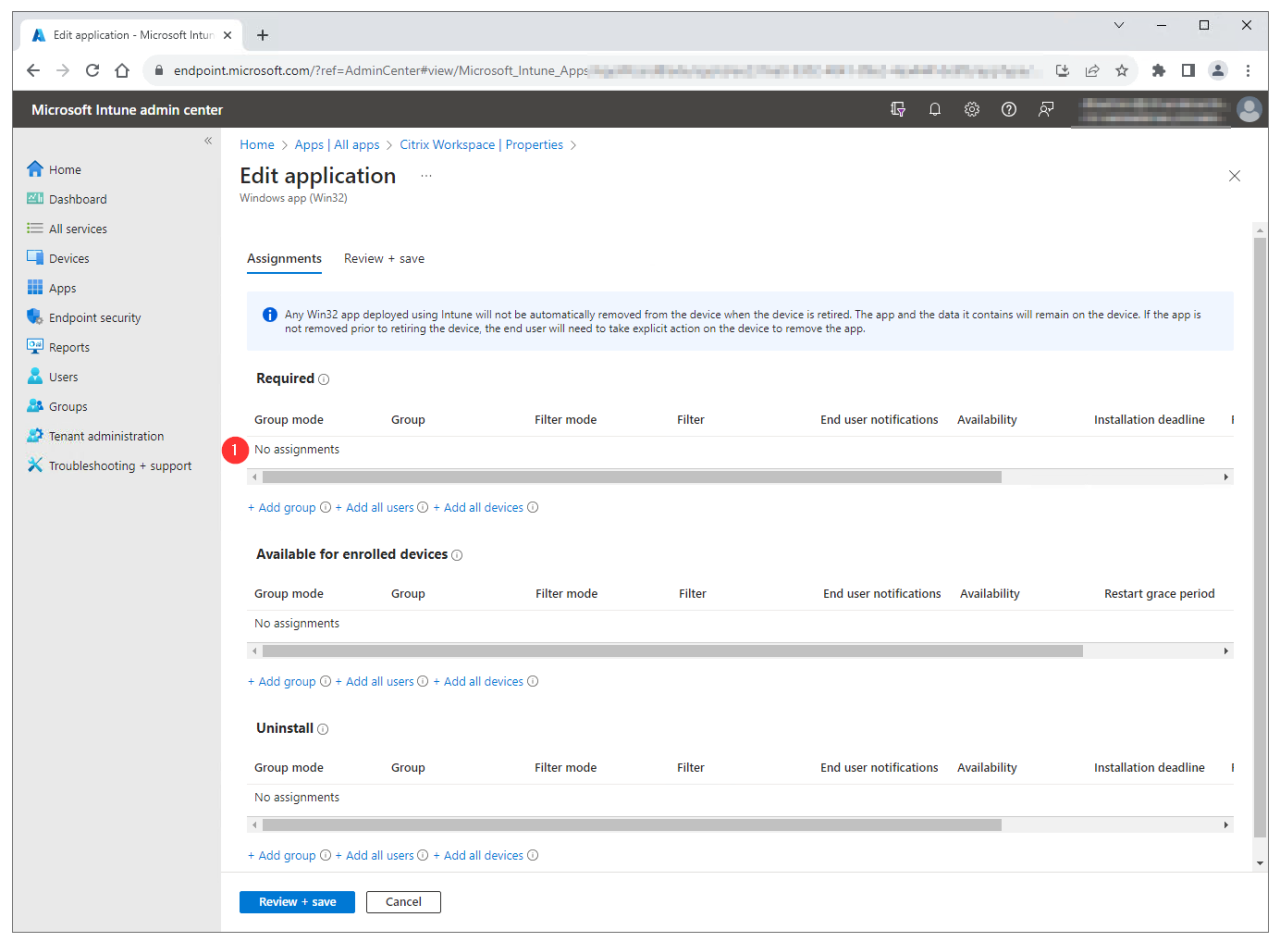
Edit Application
Logo: Select image


Assignments - Edit
Available for enrolled devices - Add all users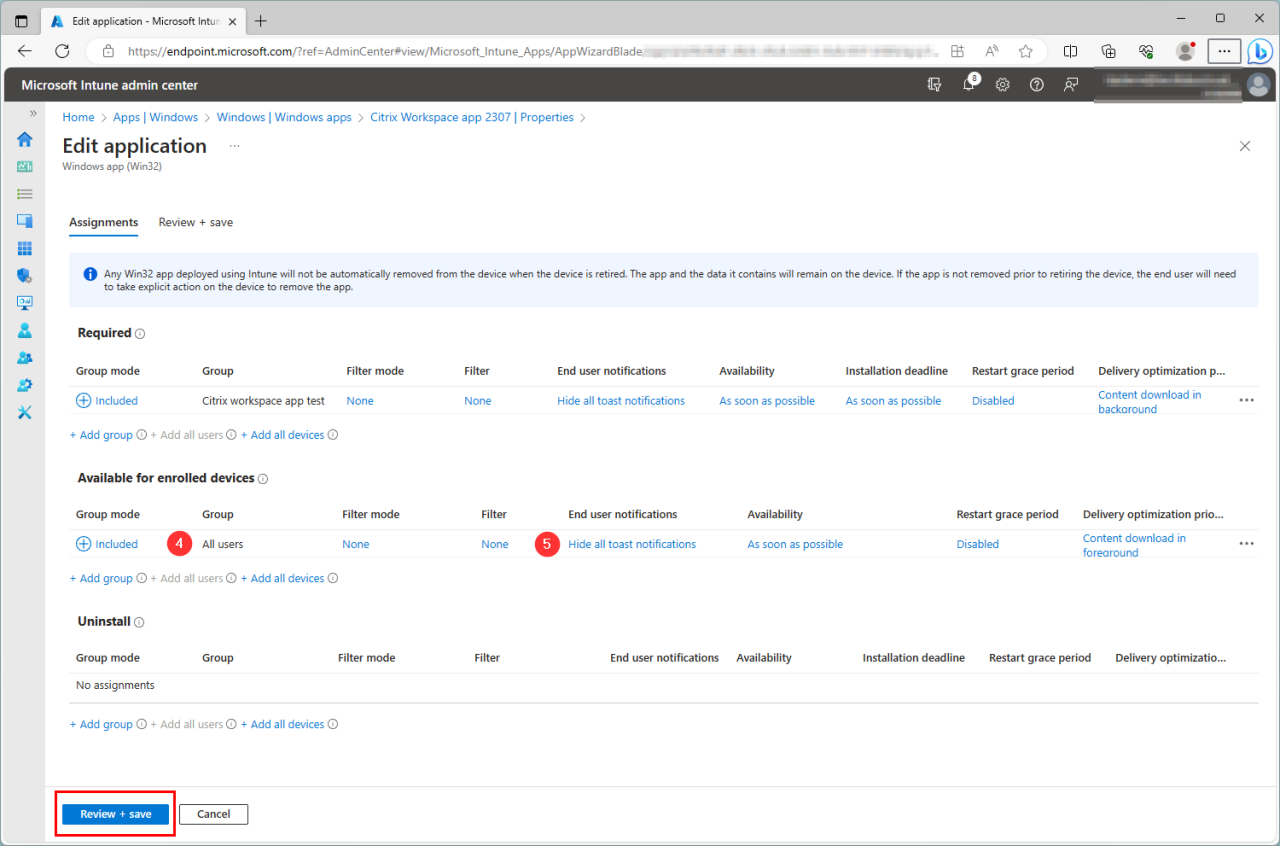
Reference:
by Author
Install Citrix Workspace app for Windows
https://docs.citrix.com/en-us/citrix-workspace-app-for-windows/install
Comments