You can help support this website by buying me a coffee!

How to disable Microsoft search in Bing in Office 365 and Microsoft 365 Apps. Disable Bing in the Office 365 admin center, disable Bing default browser homepage and turn off Background service for Microsoft Search in Bing.
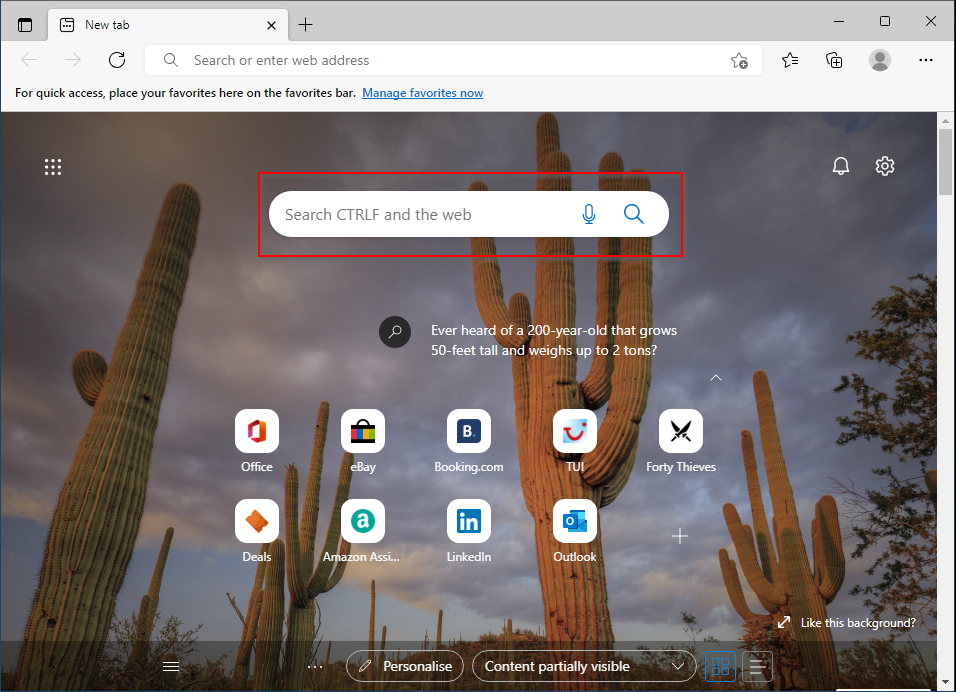
When Microsoft search in Bing is enabled, users will see search results from the web and your organization's data.
Logon to the Microsoft 365 admin center
https://admin.microsoft.com
Settings - Search & intelligence - Configurations
Microsoft Search in Bing
Untick: Enable Microsoft Search in Bing at your organization
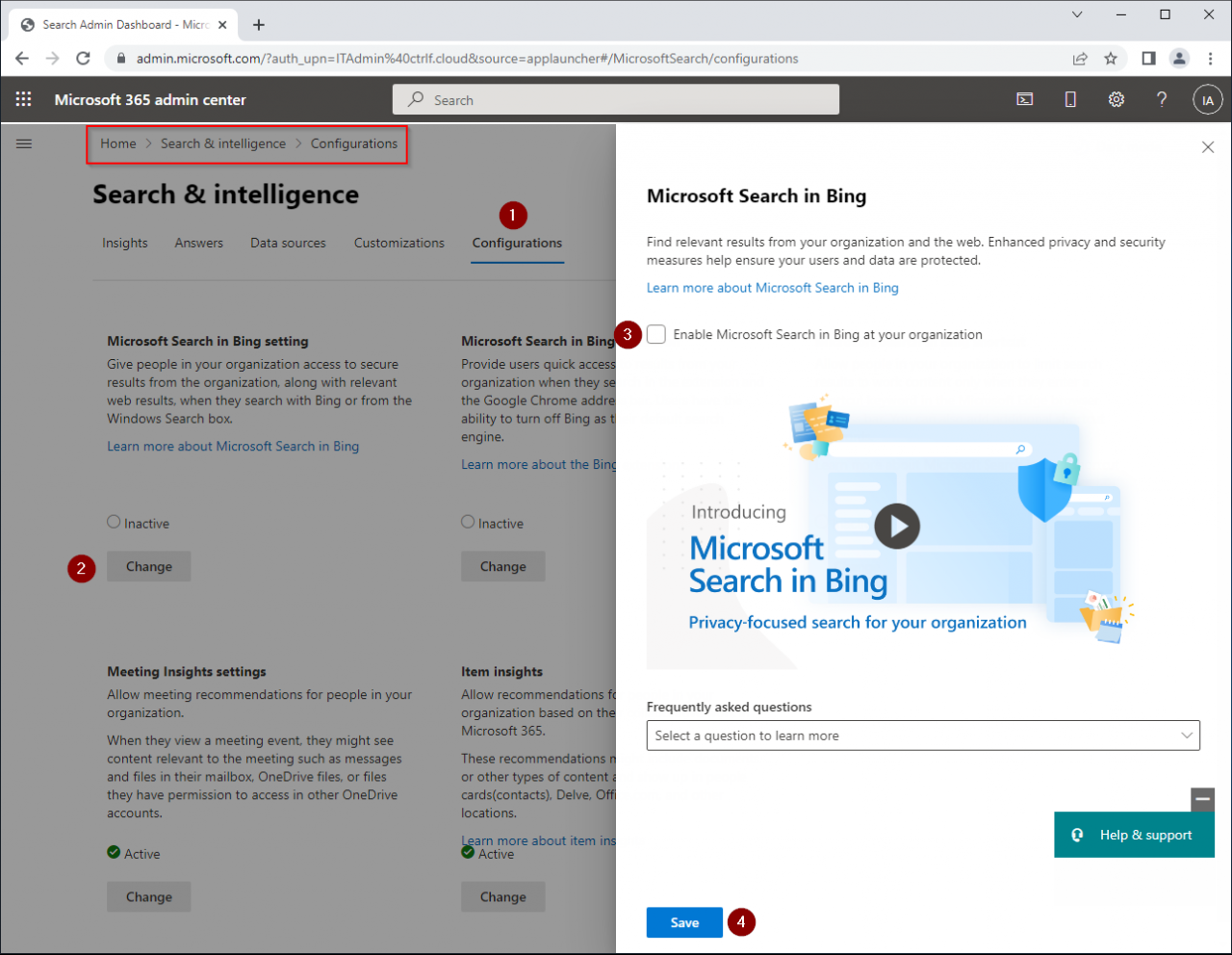
Click Confirm


Settings - Org settings - Services
Microsoft search in Bing homepage - Homepage
Untick - Display the Microsoft Search in Bing homepage for your organization

Settings - Org settings -Security & privacy - Bing data collection

Untick - Allow Bing to collect organization data to improve search experience

The Background service for Microsoft Search in Bing is included when you install or update Microsoft Office (Microsoft 365 Apps).
The background service checks if Microsoft Search in Bing is enabled in your Office 365 tenant, and if it is enabled, a Microsoft Search in Bing extension for Google Chrome is installed.
The browser extension automatically sets Bing as the default search engine.
When generating an XML configuration file for installing Microsoft Office using https://config.office.com you need to select the option to disable Background service for Microsoft Search in Bing
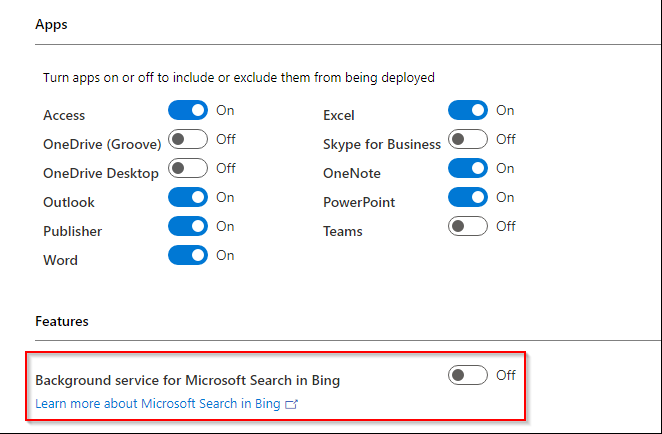
Selecting this option adds the line <ExcludeApp ID="Bing" /> to the configuration.xml file
<Configuration>
  <Add OfficeClientEdition="64" Channel="MonthlyEnterprise" SourcePath="C:\ODT" AllowCdnFallback="FALSE">
    <Product ID="O365ProPlusRetail">
      <Language ID="MatchOS" />
      <ExcludeApp ID="Groove" />
      <ExcludeApp ID="Lync" />
      <ExcludeApp ID="OneDrive" />
      <ExcludeApp ID="Teams" />
      <ExcludeApp ID="Bing" />
    </Product>
  </Add>
  <Updates Enabled="TRUE" />
  <Display Level="None" AcceptEULA="TRUE" />
</Configuration>
Computer Configuration - Policies - Administrative Templates - Microsoft Office 2016 (Machine) - Updates
"Don't install a background service for Microsoft Search in Bing"
Enabled
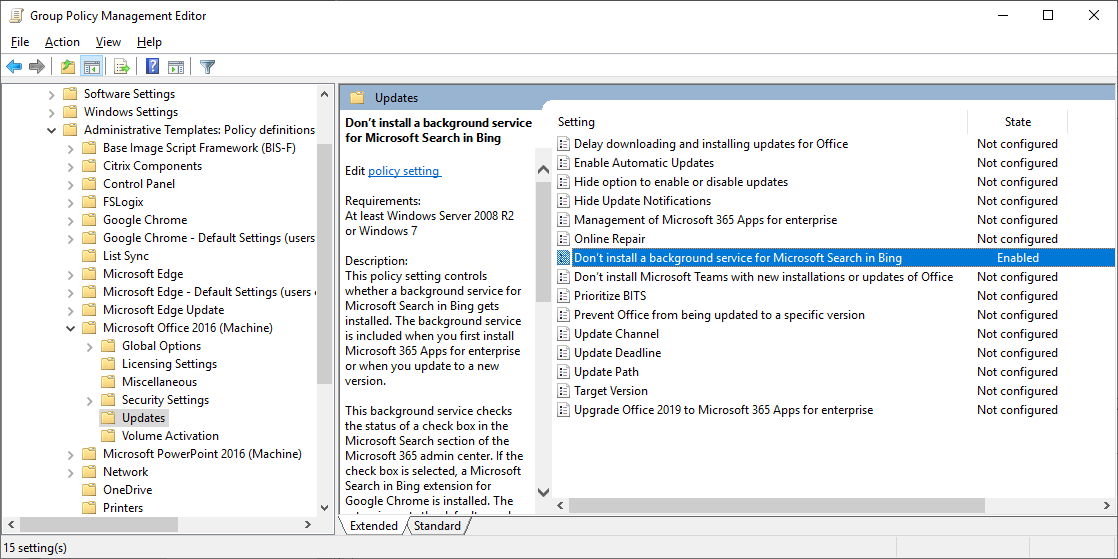
If you are installing Microsoft Office using Endpoint Manager, you can turn off Microsoft Search in Bing in the App configuration.
Endpoint Manager admin center
https://endpoint.microsoft.com
Apps - Windows - Microsoft 365 Apps
Install a background service for Microsoft Search in Bing - No

You might also want to check out this guide to disable Bing search in the Windows 11 start menu
Disable Bing Search in Windows 11 Start Menu using Endpoint Manager (Intune)
https://techlabs.blog/categories/intune/disable-bing-search-windows-11-start-menu-endpoint-manager-intune

Reference:
Microsoft Search in Bing and Microsoft 365 Apps for enterprise
https://docs.microsoft.com/en-us/deployoffice/microsoft-search-bing
by Author
Comments