You can help support this website by buying me a coffee!

UPDATED NOV 2022 How to fix Office 365 MFA error - You cannot have more than five hardware tokens or authenticator apps.
Error when trying to setup Office 365 MFA for a user
An error was encountered. You cannot have more than five hardware tokens or authenticator apps. Please delete one of more of your authenticator apps and then add a new authenticator app.
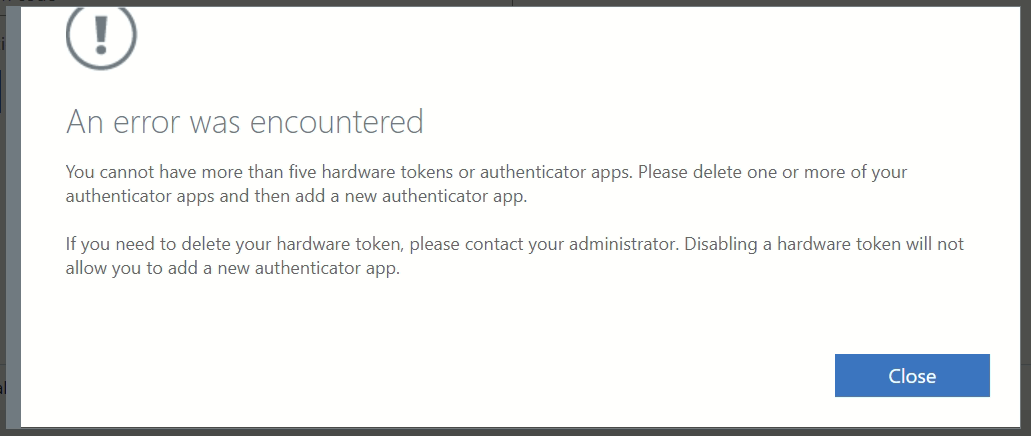
You can have up to five hardware or software devices registered for Azure AD MFA. Once you reach that limit you'll get the error "You cannot have more than five hardware tokens or authenticator apps"
This can happen if you have old mobile phones, ipads etc that have had the authenticator app setup and are now no longer in use. Most people don't remember to remove their old devices until they get the error and cant setup MFA on a new mobile phone.
It is now possible to remove MFA authentication methods from the Azure Portal
Azure Active Directory - Users
Select the user - Authentication methods
Select the old MFA device you want to remove - Menu - Delete

Manage MFA using Microsoft My Sign-Ins
Users can manage and delete their own MFA devices using Microsoft My Sign-ins
Microsoft My Sign-Ins
https://mysignins.microsoft.com

Get MFA device details using PowerShell
You can use PowerShell to get more information about devices that a user has registered for MFA
# Connect to Azure Active Directory
Connect-MsolService

# Get details of MFA devices for a user
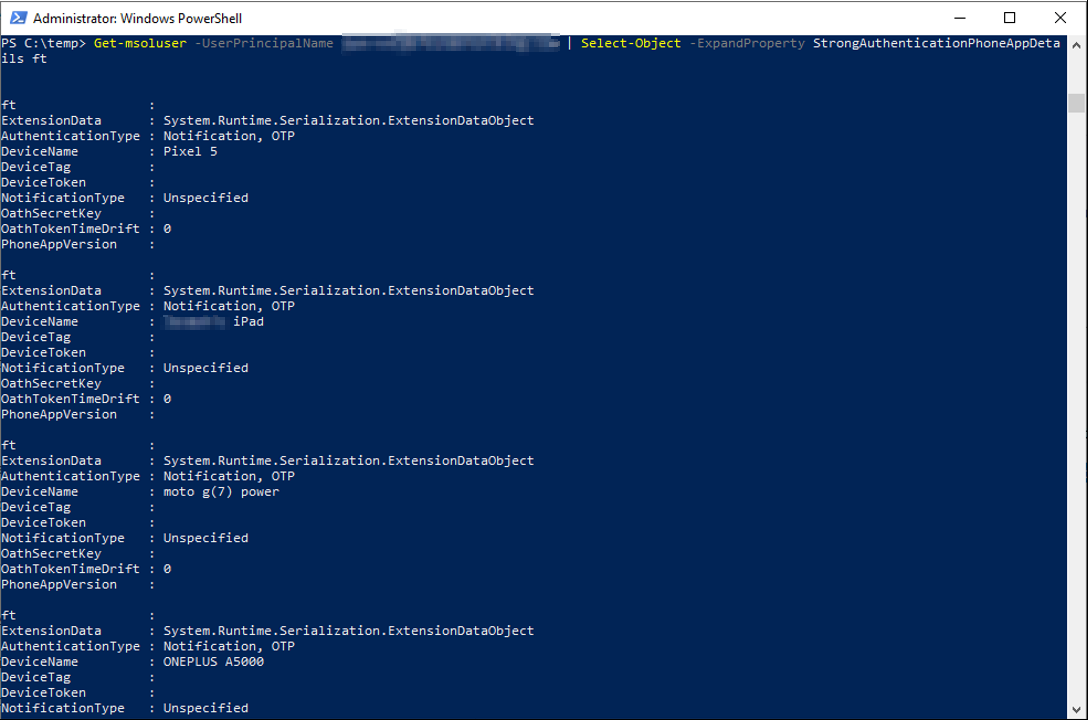
Get-msoluser -UserPrincipalName user@domain.com | Select-Object -ExpandProperty StrongAuthenticationPhoneAppDetails
This example shows that the user has five devices registered for Azure MFA
Remove all old accounts from the Microsoft authenticator mobile app and restart the phone
Disable MFA using PowerShell
#Connect to Azure AD
Connect-MsolService

#Disable MFA for the user
Set-MsolUser -UserPrincipalName philip@techlabs.cloud -StrongAuthenticationRequirements @()
MFA has been disabled

Now that MFA has been temporarily disabled the user can login to Microsoft My Sign-ins and remove their old devices
Microsoft My Sign-Ins
https://mysignins.microsoft.com
Security info - select the old Microsoft authenticator device then click delete

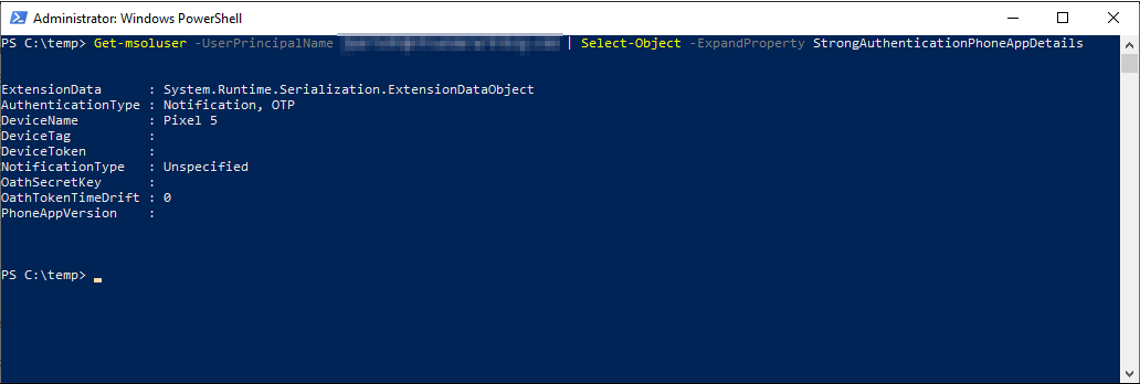
Checking the users MFA devices again with PowerShell now only shows one device, all the old devices have been removed
Run the following PowerShell to re-enable MFA for the user
# Create a StrongAuthenticationRequirement object
$st = New-Object -TypeName Microsoft.Online.Administration.StrongAuthenticationRequirement
$st.RelyingParty = "*"
$st.State = "Enabled"
$sta = @($st)

# Enable MFA for the user
Set-MsolUser -UserPrincipalName philip@techlabs.cloud -StrongAuthenticationRequirements $sta
MFA has been re-enabled
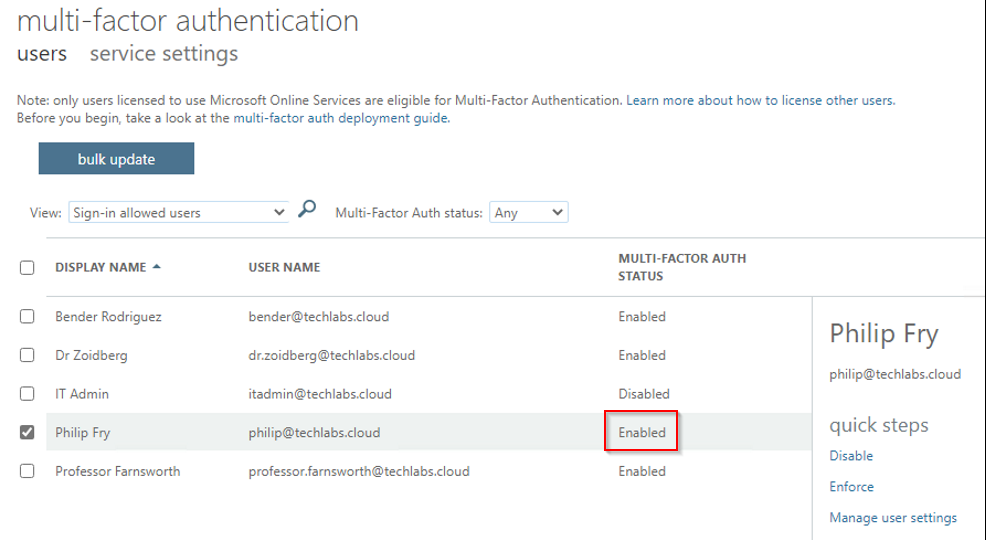
Get the user to sign into Office 365 online https://portal.office.com they will get prompted to re-setup MFA

Comments 3
Hello,
It is now possible for the Global Admin to remove the authenticator apps or hardware tokens.
From the M365 admin center, goto the Azure Active Directory admin center
Users > All users > Select the affected user
Manage > Authentication methods > Usable authentication methods
Use the Kebab menu (three vertical dots menu) on the right of the authentication method to open the context menu and select Delete.
Have a pleasant day!
Thanks for the feedback! I also noticed that Microsoft have added this feature to the admin portal recently. I will update the guide.
THIS is the correct answer!