You can help support this website by buying me a coffee!

How to use the Office Deployment Tool (ODT) with the Office Customization Tool to generate an XML configuration file to silent install Office 2019 Volume License edition
Download Office Deployment Tool
https://www.microsoft.com/en-us/download/details.aspx?id=49117
Open officedeploymenttool.exe and agree to the license terms

Extract to C:\ODT

The extracted folder contains the Office deployment tool setup.exe and some example XML configuration files

The Office Customization Tool is used to create an XML configuration file containing all the settings for installing Office.
The XML configuration file is then used with the Office deployment tool to download and install Office.
Office Customization Tool
https://config.office.com
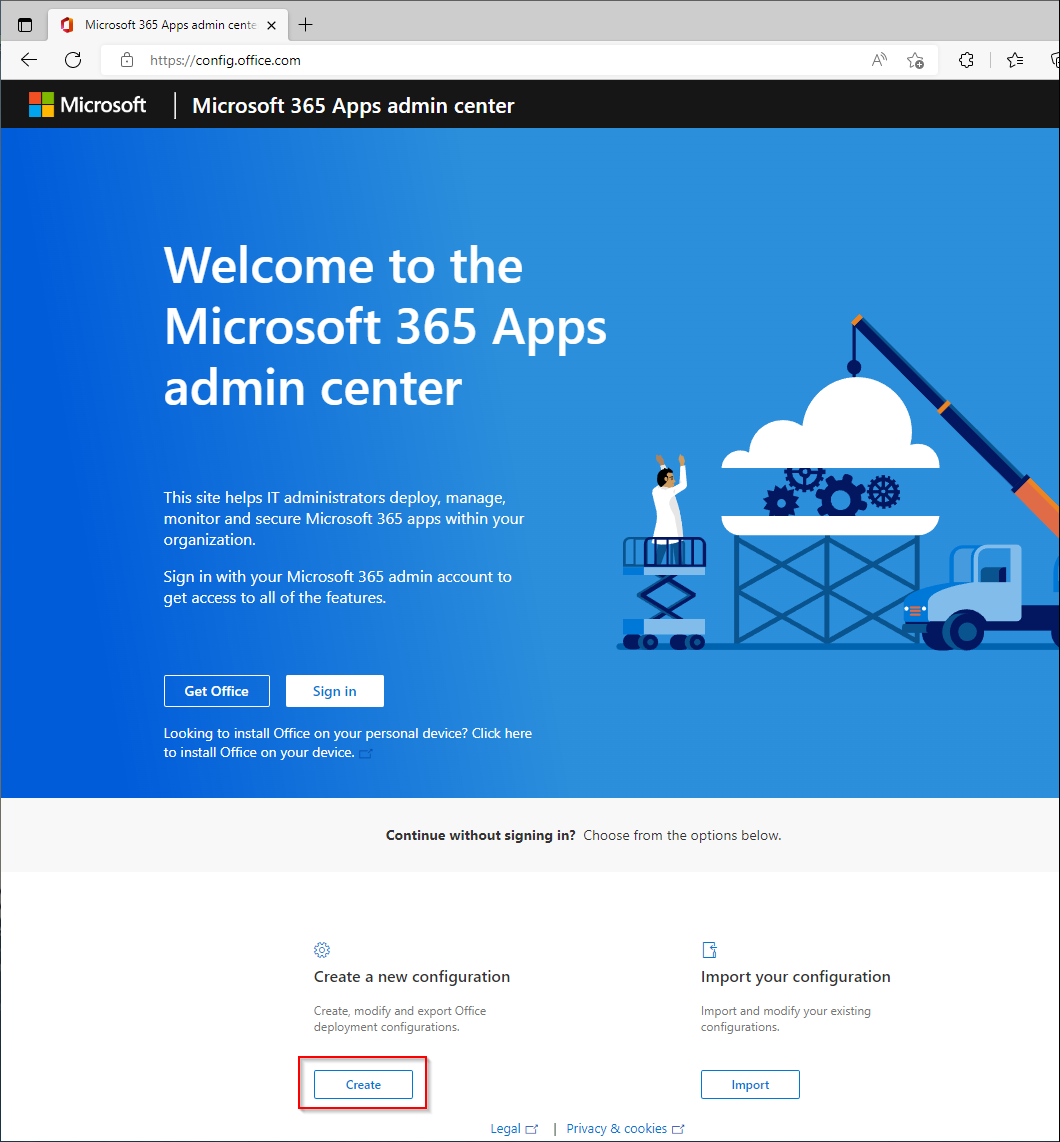
Create a new configuration
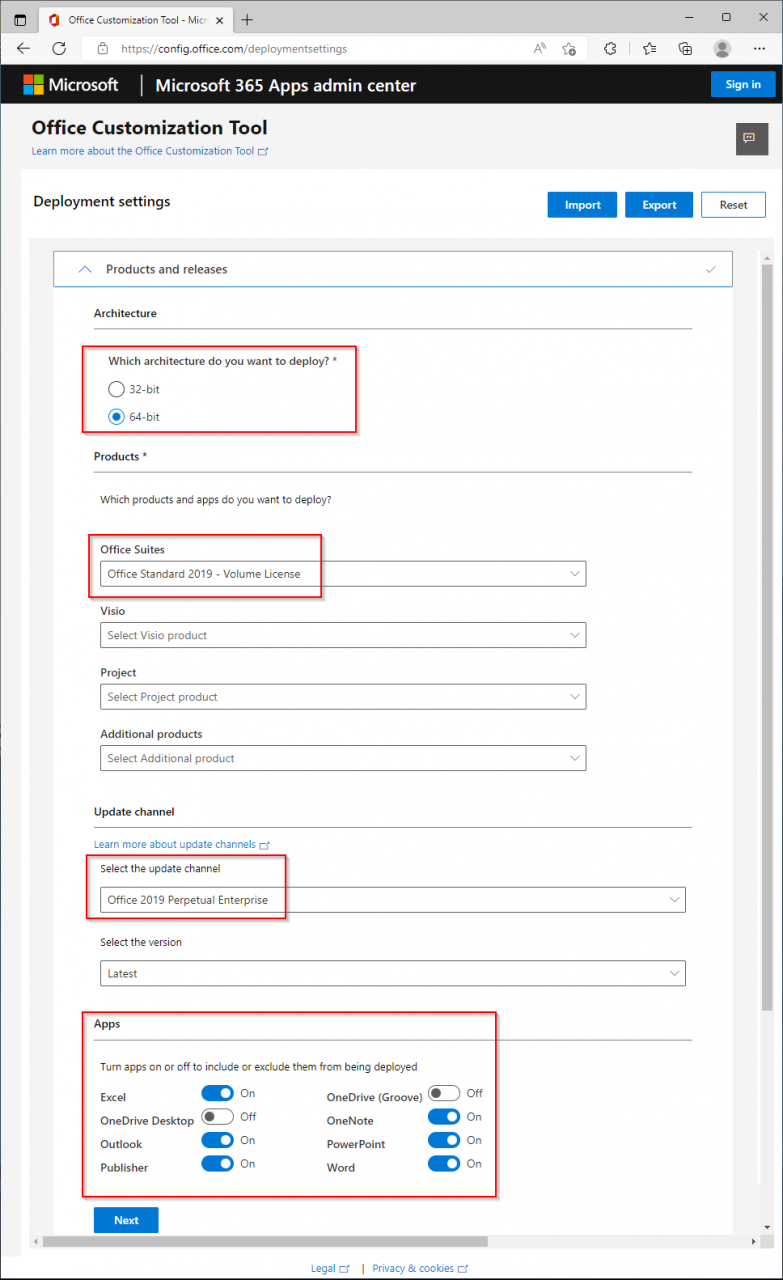
Which architecture do you want to deploy? 64-bit
Office Suites: Office Standard 2019 - Volume License
Update channel: Office 2019 Perpetual Enterprise
Select the version: Latest
Apps: Select Excel, Outlook, Publisher, OneNote, PowerPoint and Word
Select primary language: Match operating system

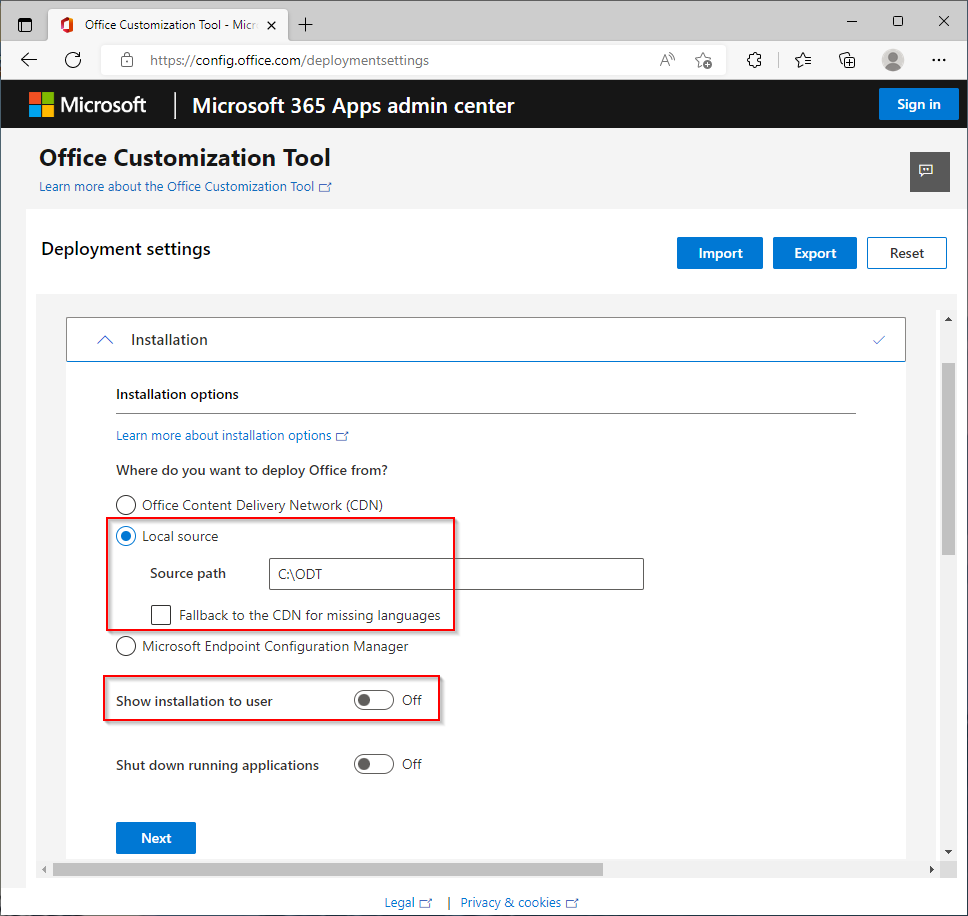
Where do you want to deploy Office from?
Local source, source path: C:\ODT
Fallback to the CDN for missing languages: Untick
Show installation to the user: Off (for silent installation)
Where do you want to deploy updates from?
Office Content Delivery Network (CDN)
Automatically check for updates: On
Upgrade options:
Uninstall any MSI versions of Office, including Visio and Project: Off

Automatically accept the EULA: On
Office Standard 2019 - Volume License: MAK
Product Key: XXXXX-XXXXX-XXXXX-XXXXX-XXXXX
Product activation: User based

We're not making any changes in this section
Click Next
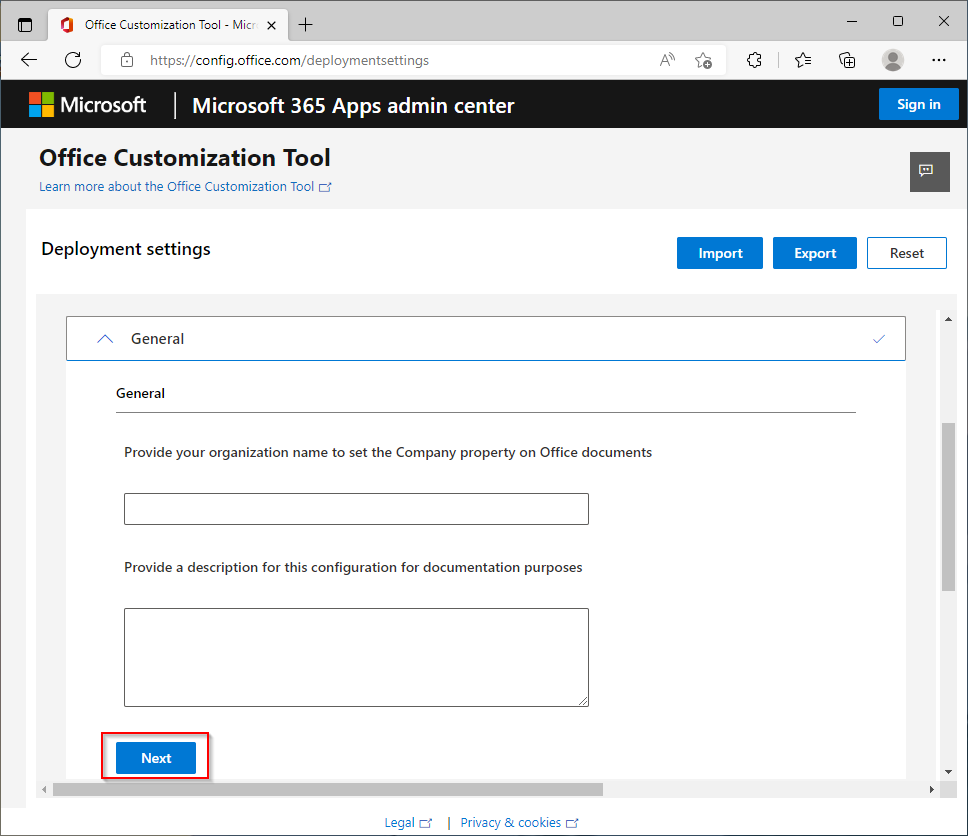
We're also not making any changes in this section
Click Finish

Export the Office deployment settings to an XML file
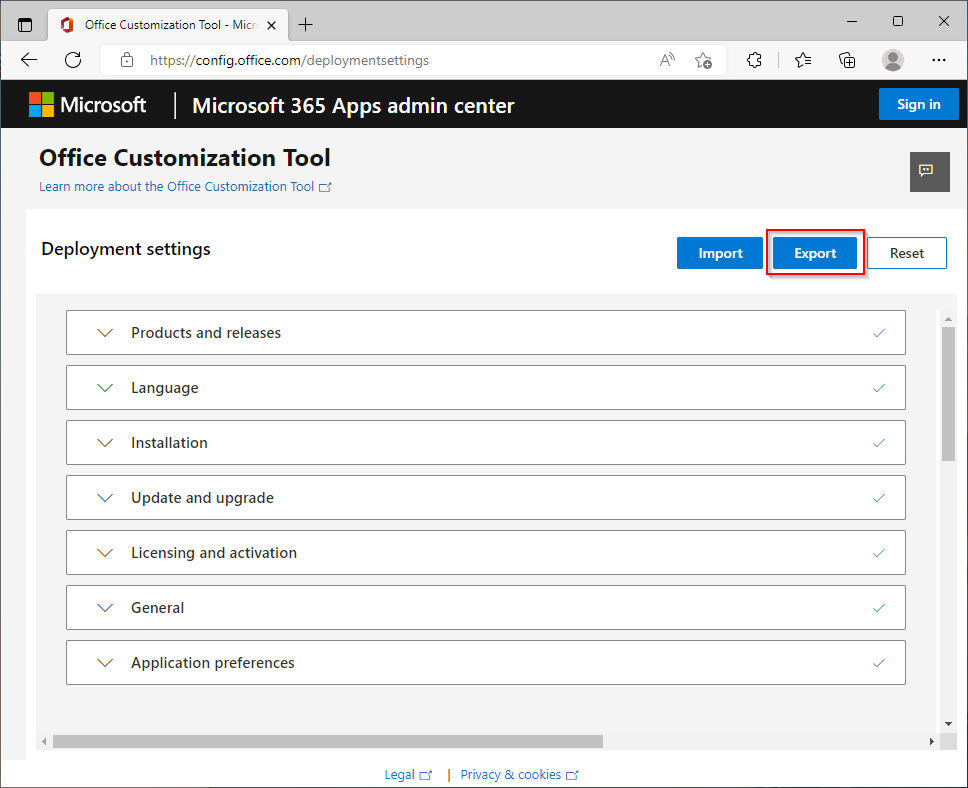
Select Office Open XML formats - click OK

Accept the license agreement
File name: Configuration
Export

Save Configuration.xml file to C:\ODT
<Configuration>
  <Add OfficeClientEdition="64" Channel="PerpetualVL2019" SourcePath="C:\ODT" AllowCdnFallback="FALSE">
    <Product ID="Standard2019Volume" PIDKEY="XXXXX-XXXXX-XXXXX-XXXXX-XXXXX">
      <Language ID="MatchOS" />
      <ExcludeApp ID="Groove" />
      <ExcludeApp ID="OneDrive" />
    </Product>
  </Add>
  <Property Name="SharedComputerLicensing" Value="0" />
  <Property Name="FORCEAPPSHUTDOWN" Value="FALSE" />
  <Property Name="DeviceBasedLicensing" Value="0" />
  <Property Name="SCLCacheOverride" Value="0" />
  <Property Name="AUTOACTIVATE" Value="1" />
  <Updates Enabled="TRUE" />
  <AppSettings>
    <User Key="software\microsoft\office\16.0\excel\options" Name="defaultformat" Value="51" Type="REG_DWORD" App="excel16" Id="L_SaveExcelfilesas" />
    <User Key="software\microsoft\office\16.0\powerpoint\options" Name="defaultformat" Value="27" Type="REG_DWORD" App="ppt16" Id="L_SavePowerPointfilesas" />
    <User Key="software\microsoft\office\16.0\word\options" Name="defaultformat" Value="" Type="REG_SZ" App="word16" Id="L_SaveWordfilesas" />
  </AppSettings>
  <Display Level="None" AcceptEULA="TRUE" />
</Configuration>
The first time Office Deployment Tool setup.exe is run with the /download option to download Office setup files, then setup.exe is run again with the /configure option to install Office 2019
Run this command from an elevated command prompt to download Office 2019 using the Configuration.xml file
setup.exe /download C:\ODT\Configuration.xml
Office 2019 installation files have been downloaded to C:\ODT\Office

Run Office Deployment Tool setup.exe again with the /configure option to silently install Office using the configuration.xml file
setup.exe /configure C:\ODT\Configuration.xml


Comments